
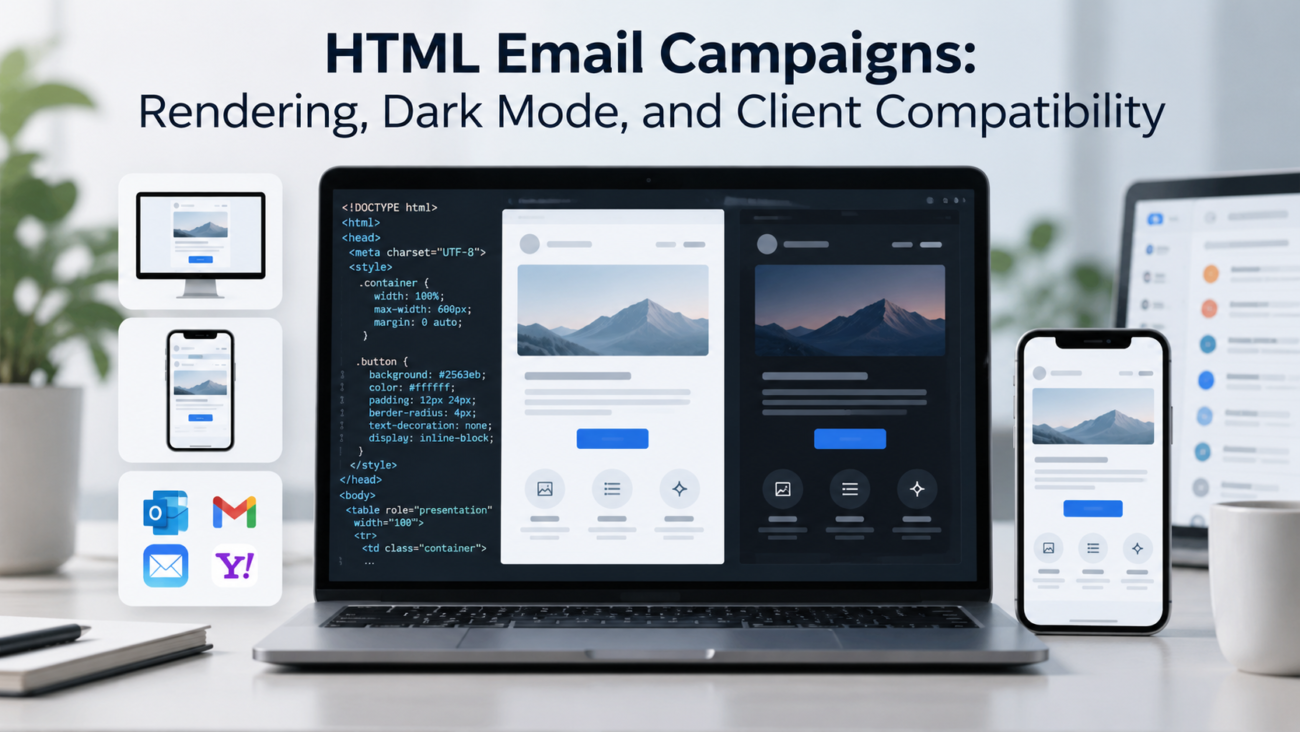
Email code lives in a harsher environment than ordinary web code. A page can rely on a modern browser, a stable CSS model, and a predictable viewport. An email has to pass through sending software, security filters, webmail sanitizers, desktop apps, mobile apps, image proxies, user settings, and dark mode before the reader sees it. That chain explains why a template that looks correct in a browser can still break in a real inbox.
For teams running HTML email campaigns, the practical goal is controlled degradation. The message should keep its reading order, key links, call to action, brand recognition, and basic visual hierarchy when a client ignores part of the CSS or changes the color palette. Perfect pixel matching across every inbox is rarely realistic. A stable design that remains readable across the clients your audience actually uses is a better standard.
This guide explains the coding choices, dark mode behavior, testing method, and client checks that matter in 2026. It also separates rendering problems from list quality and sending problems, because a message can be technically delivered and still be hard to read once opened.
TL;DR
Reliable HTML email campaigns start with conservative markup, inline styles for important presentation rules, table-based layout where broad support matters, and a mobile layout that still works when advanced CSS is ignored. HTML email rendering differs because Gmail, Outlook, Apple Mail, Yahoo, mobile apps, and desktop apps don’t process markup in the same way. The safest workflow treats each major client family as a separate rendering target instead of assuming a browser preview is enough.
Email client compatibility improves when teams use a fixed test matrix, keep fallbacks for unsupported features, verify images with blocking enabled, and retest templates after major client changes. Responsive email design should work from the smallest practical width upward, rather than depending on one desktop layout that collapses later. The rest of this guide explains how to build that system.
What HTML Email Campaigns Actually Have to Survive
An email starts as source code, but the recipient rarely receives a simple browser rendering of that source. An email service provider may inline CSS, rewrite links, insert tracking markup, or modify attributes before sending. Webmail systems can remove unsupported code or move styles. Security products may rewrite URLs or block remote images. The recipient’s email app then applies its own layout rules and user settings.
That path creates 4 separate risk areas: message structure, visual styling, external assets, and client-specific rewriting. Treating those risks as one problem makes troubleshooting harder. A broken layout comes from different causes than a missing image, and both are different from a dark mode color change. HTML email rendering becomes easier to debug when the team records which layer changed the message.
Campaign operations also matter because rendering sits inside a larger production process. IInfotanks describes planning and execution work on its email marketing services page, and the useful connection here is operational: template approval, audience preparation, sending, and post-send review should have clear owners. Rendering QA works best when it is a required production gate rather than an optional check added at the end.
A second distinction is between visual success and delivery success. An email can reach the inbox but display badly, or it can render perfectly in a preview while failing to reach many recipients. Teams should track those as separate quality measures. Good HTML email campaigns need both a sound sending program and a message that remains usable after the client has processed it.
Why HTML Email Rendering Differs Across Clients
HTML email rendering is inconsistent because email clients don’t share one browser engine or one security model. Gmail publishes a defined set of CSS selectors, properties, and media queries it supports, and unsupported rules may be ignored. The official Gmail CSS support reference is useful because it gives developers a current starting point instead of relying on old forum advice. Even then, Gmail web, Gmail mobile apps, and accounts viewed through the Gmail app can behave differently.
Outlook is another reason one preview can’t represent the whole audience. Microsoft’s documentation says the new Outlook for Windows uses WebView2 and is inspired by the Outlook web experience, while classic Outlook for Windows remains a separate client with different behavior. The new Outlook architecture helps explain why an email can look different in classic Outlook and new Outlook on the same computer. A compatibility plan should therefore name the Outlook version being tested instead of using one generic “Outlook” checkbox.
Apple Mail generally supports more modern HTML and CSS than classic Outlook, but that doesn’t remove the need for testing. Apple devices can apply dark appearance settings, privacy features can affect open measurement, and different OS releases can change behavior. Yahoo, Samsung Email, Thunderbird, and smaller regional clients add more variation. The client list is wide enough that testing every possible combination isn’t practical for most teams.
The useful response is to rank clients by audience share and business risk. A B2B sender with many Microsoft 365 recipients may spend more test time on Outlook variants than a consumer brand with a mobile-heavy audience. Email client compatibility should follow real recipient behavior where the sender has reliable client data. When that data isn’t available, start with Gmail, current Apple Mail on iOS and macOS, new Outlook, classic Outlook, and one Android client, then expand when issues appear.
Build a Safe HTML Email Foundation
The safest email foundation is intentionally simple. Use a complete HTML document where the sending platform supports it, declare UTF-8, set a viewport meta tag for mobile, and keep the main content inside a centered wrapper. Use tables for major layout when broad support is more important than elegant source code. A modern web layout can be cleaner, but email code is judged by what survives the inbox rather than by how closely it resembles front-end application code.
For HTML email campaigns, use inline CSS for critical visual rules such as font family, font size, line height, text color, background color, padding, and alignment. Embedded style blocks still have value for media queries and client-specific targeting, but important content shouldn’t depend on them. Gmail supports many style blocks and selectors today, yet a conservative baseline protects the message when a client strips or changes styles.
Keep semantic meaning in the content even when tables control layout. Heading text should read like a heading. Links should explain their destination. Images need useful alt text when they carry information. Decorative images can use empty alt text. This improves accessibility and also helps when image loading is disabled.
Send an alternative plain-text part when your platform allows it. The MIME standard defines multipart/alternative so the same message can be supplied in more than one format, and RFC 2046 explains how receiving software can choose a supported version. The plain-text part isn’t a fallback for every rendering bug, but it gives recipients and systems another readable representation of the message.
CSS Support: What to Trust and What to Treat Carefully
CSS support in email is better than it was years ago, but the safest rule is still to earn every dependency. Basic typography, colors, borders, spacing, widths, and table properties are the foundation. Media queries can improve mobile behavior. More advanced layout methods may work in several clients, but a message shouldn’t become unreadable when a client ignores them.
Flexbox and grid are good examples. Support has expanded, especially in modern webmail and mobile clients, but classic Outlook remains a reason to keep critical structure outside those systems. Use progressive enhancement if a feature adds polish without carrying the whole layout. If removing one CSS declaration causes the message to collapse, that declaration is too important to trust without a strong fallback.
Background images also need care. They can work in many clients, but support and sizing behavior vary. A safer pattern is to pair any background image with a solid background color that still keeps the text readable. When an image contains the only copy of a headline or offer, image blocking turns a design issue into a content issue, so keep essential text live where possible.
Web fonts create a similar problem. Some clients load them, others fall back, and corporate environments may block them. Choose a fallback stack whose metrics are close enough that line breaks and button widths remain acceptable. Email layouts get fragile when they depend on one font’s exact width.
Keep animations and interactive features outside the critical path. A GIF should still communicate the main point on its first frame. Interactive controls should have a standard link or landing-page alternative. HTML email campaigns perform better operationally when the creative team knows which effects are optional and which elements must survive everywhere.
Responsive Email Design Across Screen Sizes
Responsive email design should start with a narrow reading experience that can expand, rather than a wide desktop layout that has to be rescued on mobile. Use a centered container with a sensible maximum width, fluid images, and content blocks that can stack. Keep tap targets large enough to use without precise finger movement, and give text enough line height to remain readable on smaller screens.
In HTML email campaigns, media queries can change spacing, font size, column behavior, and visibility where supported. They should improve the layout instead of making it possible. A 2-column section, for example, can be coded so both cells are still readable if they remain side by side, then stacked on clients that honor the mobile rule. This approach protects the message when a mobile app handles CSS differently from the desktop version of the same brand.
Don’t use device names as your main breakpoint logic. Email windows can be narrow on desktop, split-screen views can change available width, and phone dimensions keep changing. Breakpoints should follow the design. If a row becomes cramped below 600 pixels, change it there because the content needs room, not because a specific phone model exists.
Audience planning can also shape the test matrix. A sender using job-level email lists may have a professional audience that reads mail across managed desktops and phones during the same workday. That doesn’t tell you which client each person uses, but it is a useful reminder that B2B responsive email design has to handle both desktop Outlook conditions and mobile inboxes without treating one as secondary.
The final mobile test should happen in an actual inbox, not only in a browser’s responsive mode. Browser tools don’t reproduce client sanitizing, link rewriting, dark mode behavior, or image proxy effects. They are useful during coding, but they are not an email client compatibility test.
Dark Mode: How Clients Change Your Colors
A dark mode email can be handled in several ways by the client. Some clients leave the message body close to the author’s colors. Some adjust light backgrounds and dark text. Others make broader color changes that affect buttons, borders, icons, and brand colors. The exact result can depend on the client, operating system, account type, and whether the message declares support for color schemes.
The CSS media feature prefers-color-scheme can detect a user’s light or dark preference in environments that support it. Mozilla documents the syntax in its prefers-color-scheme reference, which is useful for understanding the web standard itself. Email support is a separate question, so a rule that works in a browser still needs inbox testing.
Current email support remains uneven. Can I Email’s support data for prefers-color-scheme shows why teams shouldn’t treat the media query as universal. Some major client families support it fully or partly, while others don’t give authors consistent control. That makes dark mode email work a fallback problem as much as a CSS problem.
Use dark-theme rules where they help, but design the light theme to survive client changes too. Avoid very light gray text on white backgrounds, border-only buttons with weak contrast, or logos that disappear when the surrounding background changes. Mid-range brand colors often survive client adjustments better than extreme black and white combinations, but every color still needs to be checked in the clients that matter.
Microsoft’s current guidance also notes that email clients may apply no change, partial inversion, full inversion, or style overrides in dark appearance settings. The practical advice in Microsoft’s light and dark email guidance is to preview and test across client and mode combinations. That is the right mental model: dark mode email behavior is something to verify, not something to assume from source code.
Designing Logos, Images, Buttons, and Links for Dark Mode
Logos are a common dark mode failure because they are often designed for one background. A dark wordmark placed on a transparent image can vanish when the client changes the surrounding surface. A white logo can disappear on a light area that the client leaves unchanged. The safest asset has enough edge definition to remain visible on both light and dark surfaces, or it has a controlled background built into the image.
Transparent PNG files can work well for icons and logos, but transparency doesn’t solve contrast by itself. Add a subtle light or dark outline when brand rules allow it, or place the mark on a small solid shape whose color is chosen for both modes. Keep essential copy out of images so a missing asset doesn’t remove the message.
Buttons need the same defensive design. Use a solid fill, readable live text, and padding that makes the entire area easy to tap. Don’t depend on a thin border to define the button because a client may recolor or weaken that border. The link should remain understandable even if the fill shifts slightly.
Text links should be recognizable without relying only on color. An underline is a simple fallback when client colors change. This also supports accessibility. The W3C’s WCAG 2.2 contrast guidance sets a 3:1 contrast requirement for meaningful non-text visual information at Level AA, while text has separate contrast requirements under WCAG. Email isn’t always evaluated as a web page, but these thresholds are useful design checks for controls and graphics.
A dark-mode review should include images blocked, images loaded, light appearance, and dark appearance. That sounds repetitive until a team sees a logo work in 3 states and fail in the fourth. The check belongs in the template process, not as a special exercise after a complaint.
Email Client Compatibility by Major Client Family
Email client compatibility improves when the test list reflects client families rather than brand names alone. Gmail web and Gmail mobile don’t behave identically. New Outlook and classic Outlook are different rendering targets. Apple Mail on macOS and iOS share many strengths but still deserve separate checks when a campaign uses complex layout or dark-theme rules.
The following table is a practical starting point. It describes what to watch, not a promise that every version will behave the same.
| Client Family | Main Risk to Check | Practical Test Focus |
| Gmail web | CSS sanitizing and style support | Inline critical styles, media query behavior, image sizing |
| Gmail mobile | Dark appearance changes and narrow layouts | Stacking, button size, logo contrast, text wrapping |
| Classic Outlook for Windows | Older rendering behavior | Tables, spacing, backgrounds, button fallbacks |
| New Outlook for Windows | Web-based rendering differences | Compare with classic Outlook, check recent regressions |
| Apple Mail | Strong CSS support with user appearance changes | Dark-theme rules, image behavior, typography |
| Yahoo and other webmail | Client-specific style handling | Core layout, links, images, basic responsive behavior |
Testing priorities should follow the audience. If campaigns are sent to sales operations teams, CRM administrators, or other business users, IInfotanks’ CRM users email list is an example of how B2B audiences can be segmented by technology use. That kind of segmentation doesn’t directly reveal the recipient’s inbox, so it shouldn’t replace client data, but it can help campaign owners think about the enterprise environments their readers may use.
Don’t build a compatibility matrix nobody maintains. Record the client, operating system, appearance setting, expected result, actual result, and severity. A small matrix run for every release is more useful than a large spreadsheet that was accurate 2 years ago.
Build a Testing Workflow Before Every Campaign
A reliable test workflow begins before the final copy is loaded. Test the base template with short content, long content, missing images, long URLs, and unusual personalization values. This catches structural problems before campaign-specific edits make the template harder to debug. Once the content is final, run the same client matrix again because copy length can change layout.
For HTML email campaigns, start with code checks. Confirm every link has a full URL, images have width rules and alt text, tables close correctly, and important styles are inline. Then send the message through the same platform that will send the live campaign. Previewing raw HTML skips the transformations that the production platform may apply.
Next, test representative inboxes. Open the message in desktop and mobile clients, in light and dark appearance settings where available, with images both loaded and blocked. Compare against the intended reading order rather than a screenshot alone. A 6-pixel spacing change may be acceptable, while a hidden link or unreadable button isn’t.
Use a simple defect scale. A critical defect blocks reading or action. A major defect changes hierarchy or removes meaningful content. A minor defect is cosmetic and doesn’t affect comprehension. This keeps reviews from spending an hour on a small border difference while missing a broken mobile stack.
Accessibility and Readability Across Modes
Accessibility work makes email more resilient even for readers who don’t use assistive technology. Use a logical reading order, meaningful link text, alt text for informative images, sufficient text size, and enough spacing around interactive elements. Avoid placing essential meaning in color alone. These choices remain useful when a client strips styles or changes colors.
Contrast has to be checked in both appearance modes. A pair that passes in light mode can fail after a client darkens the background or changes the text color. Dark mode email QA should therefore include the client-rendered result, not only the colors defined in the design file. When possible, choose combinations with enough margin above the minimum so small client changes don’t push the result below the threshold.
Don’t hide important content only for visual neatness. CSS used to visually hide preview text or secondary content can behave differently across clients and screen readers. If a piece of information matters, keep it in the natural reading flow. Use headings sparingly and in a logical sequence so assistive technology can make sense of the message.
Tables used for layout need care too. Avoid adding unnecessary table semantics that make a screen reader announce layout structure as data. Many email templates use role=”presentation” on layout tables, while real data tables should keep proper header relationships. The exact markup should be tested with the sending platform because some tools rewrite attributes.
Accessibility is also a useful quality filter for HTML email campaigns. If the message still makes sense without images, keeps links recognizable, and preserves contrast under color changes, it is usually more resistant to ordinary rendering failures as well.
Performance, Message Size, and Image Loading
A heavy email creates more chances for failure. Large images take longer to load on slow connections, remote assets may be blocked, and oversized source code can trigger clipping or processing limits in some services. Keep the HTML focused and remove editor leftovers, duplicated styles, hidden modules that aren’t used, and large comments before sending.
Compress raster images and serve them at dimensions appropriate for the email. High-density displays may justify exporting above the CSS display width, but the file still needs to stay reasonable. Use JPG for photos when it is smaller, PNG when transparency matters, and test newer formats before relying on them across the full audience.
Don’t treat an image load as guaranteed. A message should have a useful subject line, preheader, text structure, and visible links even when remote images are off. Alt text can help, but it doesn’t replace a layout that works without pictures. HTML email rendering should be checked with images blocked because that state exposes whether the design depends too heavily on assets.
Performance also matters on mobile. A reader on a weak connection shouldn’t have to download a large hero image before understanding the message. Put the main point in live text early, then let imagery support it.
Common Rendering Failures and How to Fix Them
Use this section after a rendering defect appears. Start with the visible symptom, narrow it to the client or rendering layer involved, then inspect the first likely cause before changing the whole template.
| Symptom | Likely cause | First check |
| Columns collapse or spacing disappears in classic Outlook | The layout depends on flexbox, grid, or another CSS rule that classic Outlook does not handle reliably. | Inspect the main structure for a table fallback. Check that critical spacing sits on table cells and that the message still reads correctly when the modern layout rule is ignored. |
| A logo or icon disappears only in dark mode | The client has changed the surrounding background or inverted colors, leaving too little contrast around the asset. | Open the rendered message in light and dark appearance with images loaded. Check the asset against the actual client background, then use a controlled background or stronger edge contrast if needed. |
| A button becomes hard to see in dark mode | The client has changed the fill, border, or text color and the button depends too heavily on one of those properties. | Check the rendered fill and live-text contrast first. Confirm that the button remains recognizable without relying on a thin border alone. |
| The mobile message scrolls sideways or a column runs off screen | A fixed-width image, rigid column width, or long unbroken string is wider than the available view. | Check image width rules, table-cell widths, and text wrapping with long real content. Confirm that the layout has a readable single-column fallback where stacking is required. |
| The browser or sending preview looks correct, but the real inbox breaks | The sending platform or receiving client has rewritten links, inlined or removed CSS, substituted personalization, or sanitized markup. | Send the message through the production path to the affected inbox. Compare the processed result with the source and isolate the change before editing unrelated template code. |
| The message loses meaning when images are blocked | Essential information depends on remote assets, or the live text and link structure do not carry enough of the message on their own. | View the email with images blocked. Check alt text, live headings, link meaning, and reading order before changing image loading behavior. |
When a rendering defect reaches production, record the exact symptom, affected client, confirmed cause, and fix in the regression record. That gives later test passes a concrete failure pattern to check and turns incidents into reusable diagnostic evidence.
Conclusion
HTML email campaigns work best when the team accepts that inboxes are different and designs for that reality from the first line of code. Conservative structure, inline critical styles, real mobile testing, and clear fallbacks reduce the number of client-specific surprises. HTML email rendering should be treated as a release process with known targets, rather than a final screenshot review.
Dark mode adds another rendering layer because clients can alter colors even when the source code is valid. A dark mode email needs readable contrast, resilient assets, and testing in the actual inboxes that matter. The same discipline applies to responsive email design: the message should remain usable when a media query is ignored or a screen becomes narrower than expected.
The final standard is practical email client compatibility. Define the client matrix, test the production output, record failures, and fix the template rather than patching each campaign from scratch. That approach gives teams a stable base they can keep using as email software changes.
FAQs
What is HTML email rendering?
HTML email rendering is the process an email client uses to interpret and display the message’s HTML, CSS, images, and other supported elements. The same source can look different in Gmail, Outlook, Apple Mail, and other clients because each one supports and rewrites code differently.
Why do HTML email campaigns look different in Outlook?
HTML email campaigns can look different in Outlook because classic Outlook for Windows and new Outlook use different rendering approaches. Classic Outlook is more restrictive with modern CSS, so table-based structure and fallbacks remain important when that client is part of the audience.
Does Gmail support CSS in HTML email?
Yes. Gmail supports many CSS properties, selectors, and media queries, but it doesn’t behave like a normal browser. Critical styles should still be tested in Gmail web and mobile because support can differ by context and unsupported rules may be ignored.
Should I use tables for email layout in 2026?
Tables remain useful when broad email client compatibility matters, especially for layouts that must hold up in classic Outlook. They can be combined with modern CSS for clients that support more features, as long as the base message stays readable without the enhancement.
What is a dark mode email?
A dark mode email is a message viewed when the recipient’s client or operating system uses a dark appearance. The client may leave the email unchanged, alter some colors, or make broader color changes, so the final appearance can differ from the original light design.
Can I force an email to stay in light mode?
You can declare color-scheme preferences and use CSS that targets supported clients, but you can’t reliably force every email client to preserve the light version. Some clients apply their own color changes, which is why direct testing remains necessary.
Does prefers-color-scheme work in every email client?
No. Support for prefers-color-scheme is uneven across email clients. It is useful as an enhancement where supported, but the message should keep readable colors and clear controls when the media query is ignored.
How do I stop a logo from disappearing in dark mode?
Use a logo asset that remains visible on both light and dark surfaces. A controlled background, a suitable outline, or a second logo version for clients that support dark-theme image swapping can help. Always test the actual rendered result.
What makes responsive email design reliable?
Responsive email design is more reliable when the base layout can shrink naturally, images are fluid, columns can stack, and mobile media queries improve rather than rescue the message. Test the production send in real mobile clients instead of relying only on browser simulation.
Which email clients should I test first?
Start with the clients your audience actually uses. When you don’t have client data, cover Gmail web and mobile, Apple Mail on a current iPhone, new Outlook, classic Outlook for Windows, and at least 1 Android mail client, then expand based on defects and audience needs.
How often should I retest an email template?
Retest after meaningful template code changes, sending-platform changes, or major email-client updates that affect your audience. A stable template can use a lighter regression pass for routine campaigns, but the core client matrix should still run before important sends.
Are web fonts safe in HTML email?
Web fonts have partial support and can be blocked, so they shouldn’t be the only font plan. Use a fallback stack that keeps the message readable and doesn’t cause major layout shifts when the preferred font isn’t loaded.
Should important text be placed inside images?
No. Keep essential copy as live text whenever possible. Image blocking, slow connections, accessibility needs, and client rendering changes can all make image-only text harder to read or unavailable.
What is the difference between deliverability and rendering?
Deliverability concerns whether the message reaches the intended mailbox or folder. Rendering concerns what the recipient sees after opening it. A campaign can succeed at one and fail at the other, so teams should test and measure them separately.
What is the fastest way to improve email client compatibility?
Start by simplifying the base template, moving critical styles inline, adding fallbacks for fragile features, and testing a fixed set of real clients before every major send. Fix recurring problems in the shared template so the same defect doesn’t return in later campaigns.
