A Salesforce implementation succeeds or fails on decisions that rarely appear in the project charter. Nobody schedules a kickoff meeting to debate data loaders. Nobody puts “documentation tooling” on the executive steering committee agenda. And yet these choices, made quickly and often by whichever consultant happened to be free that week, determine whether the org stays maintainable 18 months after go-live or turns into the kind of undocumented, untested, manually-deployed mess that costs 3 times as much to fix as it would have cost to build correctly from the start.
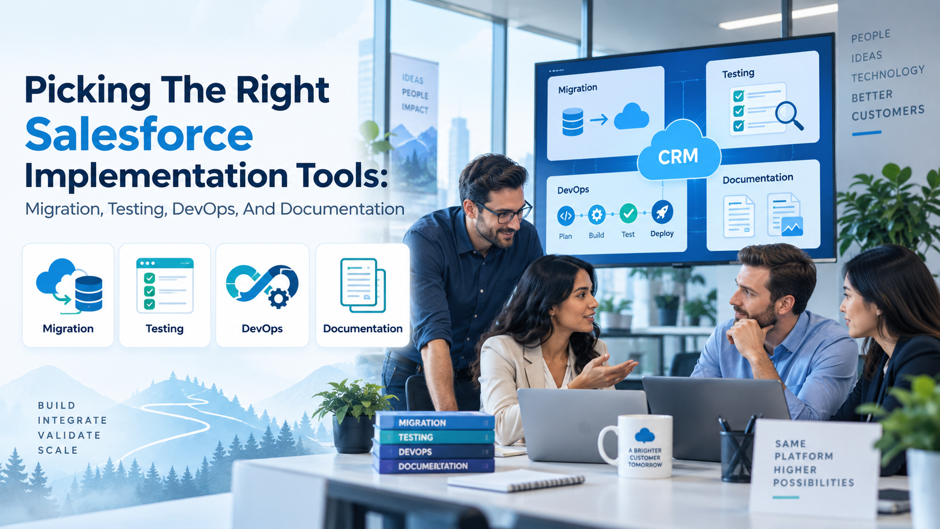
The Salesforce ecosystem now has a genuinely mature tooling landscape across 4 categories that matter most: migration tools that move data reliably in and out of the platform, testing tools that catch regressions before customers do, DevOps platforms that turn deployment from a manual, error-prone ritual into a governed, auditable pipeline, and documentation tools that keep institutional knowledge from walking out the door when a consultant’s engagement ends. This guide walks through each category, what separates the tools worth paying for from the ones that create more work than they save, and how to match tool selection to the actual size and complexity of the implementation in front of you.
TL;DR
| Category | What good tooling solves | Where most teams go wrong |
| Migration | Reliable, repeatable, relationship-aware data movement between systems and orgs | Using the free Data Import Wizard for a complex migration it was never designed to handle |
| Testing | Catching regressions before they reach production, across both declarative and code changes | Relying entirely on manual UAT with no automated regression suite behind it |
| DevOps | Governed, auditable, repeatable deployments with rollback capability | Deploying changes directly in production with no version control or CI/CD pipeline at all |
| Documentation | A living record of what was built, why, and how it’s configured | Documentation that exists only in a consultant’s head, or in a slide deck nobody opens again |
The pattern across all 4 categories is consistent: free, native tools are genuinely adequate for small, simple, one-time needs, and become a liability the moment the implementation crosses a complexity threshold that the free tool was never designed to handle. Knowing where that threshold sits for your specific project is the actual skill this guide is trying to build, and the sections below give concrete signals for each category rather than a vague sense that bigger projects simply need better tools.
Migration Tools: Moving Data Without Losing It
Data migration is where implementation timelines quietly slip and where the consequences of a wrong tool choice show up fastest, because a migration failure is immediately visible to every user who logs in and finds their records missing, duplicated, or incorrectly linked. Unlike a testing gap or a documentation shortfall, which can go unnoticed for weeks, a broken migration is discovered on day one of go-live by the exact audience an implementation is most trying to impress.
What Determines Which Migration Tool You Need
Four questions determine the right migration tool for a given project, and answering them honestly before tool selection saves significant rework later. Skipping this assessment and defaulting to whichever tool the last project used, regardless of fit, is one of the most common and most avoidable sources of migration failure in Salesforce implementations, and it’s a mistake that costs nothing to prevent since the assessment itself takes minutes, not days.
- How much data are you moving? A flat import of a few thousand records behaves completely differently than a multi-million-record historical migration with complex relationships between objects.
- How complex are the relationships between objects? Simple standalone records load easily with almost any tool. Records with parent-child hierarchies, lookups that need to resolve correctly across the migration, and multi-object dependencies require a tool built specifically to preserve those relationships.
- Do you need to migrate files and attachments? ContentVersion and ContentDocumentLink records are where many migrations quietly fail, because they behave differently from standard object migration and many simpler tools don’t handle them at all.
- Who is actually running the migration? A developer comfortable with command-line tools and JSON configuration files has a much wider set of viable options than a business analyst or admin who needs a graphical interface.
The Migration Tool Landscape
| Tool | Best for | Key limitation |
| Data Import Wizard | Simple, flat imports under 50,000 records on standard objects | No org-to-org migration, no complex relationships, no rollback capability |
| Salesforce Data Loader | High-volume single-object loads, native and free | CSV-based, limited file support, no built-in rollback, command-line for automation |
| SFDMU | Direct org-to-org migration with full relationship preservation | CLI-only, no graphical interface, steeper learning curve for non-developers |
| Dataimporter | Org-to-org migration with files, no-code interface, and rollback | Paid tiers required for larger volumes and advanced features |
| ETL platforms (Skyvia, Jitterbit) | Ongoing multi-system integration alongside one-time migration needs | Higher cost and setup time than purpose-built migration tools for a single cutover |
The free native tools remain genuinely the right choice for their intended scope. Salesforce Data Loader can process up to 5 million records reliably when the migration is a single-object, high-volume load without complex relationship requirements. Where teams get into trouble is reaching for Data Loader or the Data Import Wizard on a migration that actually needs relationship-aware, multi-object handling, discovering the gap only after data has already loaded incorrectly and needs to be cleaned up in production.
Data Loader’s 2025 Security Changes Matter for Planning
Salesforce made significant authentication changes to Data Loader in late 2025 that affect implementation planning specifically. OAuth 2.0 Device Flow was removed as of September 2025, requiring teams to use password authentication or OAuth 2.0 User-Agent Flow instead, and uninstalled connected apps require admin permission before they can authorise. Teams planning a migration that relies on Data Loader need to account for this authentication setup as an explicit project task, not an afterthought discovered during the first failed connection attempt on migration day.
The Files and Attachments Trap
Nearly every migration tool comparison flags files and attachments as the single most common point of failure, and it’s worth understanding why. ContentVersion and ContentDocumentLink don’t behave like standard Salesforce objects; they have their own relationship model, and a tool that handles standard object migration cleanly can still fail silently on file attachments, either dropping them entirely or breaking the link between a file and the record it belongs to. Any migration scope that includes historical attachments, case files, or document libraries needs the migration tool’s file-handling capability explicitly verified in a test run before the actual cutover, not assumed based on how well the tool handled standard objects.
Testing Tools: Catching Problems Before Customers Do
Testing tooling has matured significantly, and the category now splits cleanly along 2 dimensions: who is writing the tests, and what layer of the application they’re testing. Understanding both dimensions before evaluating specific vendors prevents the common mistake of buying a tool that excels at one layer while leaving a genuine coverage gap at another layer the team assumed was already handled, which is precisely how organisations end up with an expensive testing tool and still get surprised by a production regression.
The Testing Layers in a Salesforce Implementation
Unit testing happens at the individual component level, covering Apex classes, triggers, and Visualforce pages, and is written in Apex itself by developers. This layer is mandatory for any custom code deployment since Salesforce enforces a minimum code coverage threshold before allowing production deployment, but passing coverage alone doesn’t guarantee the code actually behaves correctly under real conditions.
Functional and UI testing verifies that features work as intended from a user’s perspective: data entry, workflow automation, validation rules, and business logic executing correctly through the actual interface a user interacts with. This is where dedicated Salesforce testing tools add the most value, because they understand Salesforce’s Lightning component structure in a way that generic browser automation tools don’t.
Regression testing confirms that new changes haven’t broken existing functionality, and needs to run consistently after every sprint deployment, before each Salesforce seasonal release, and after major sandbox refreshes. Regression testing is the layer most commonly skipped under timeline pressure, and it’s also the layer where the cost of skipping it compounds fastest, since undetected regressions accumulate silently until a release breaks something that had been working reliably for months.
User acceptance testing sits between automated test suites and production deployment, run by actual business users validating that the system meets their real workflow needs, distinct from whether the code technically executes without errors.
Comparing the Leading Testing Tools
| Tool | Approach | Best fit |
| Provar | Codeless, Salesforce-native UI and API test automation | Teams wanting deep Salesforce-specific test coverage without writing code |
| Copado Robotic Testing | AI-powered, codeless automation integrated with Copado’s DevOps platform | Teams already using Copado for deployments who want testing in the same pipeline |
| ACCELQ | Codeless cross-system automation covering Salesforce plus connected APIs, web, and legacy systems | Complex environments where a business process spans Salesforce and multiple external systems |
| Selenium with UTAM | Open-source browser automation with Salesforce’s UI Test Automation Model layer | Developer-led teams wanting full control and no per-seat licensing cost |
| Native Apex tests | Code-level unit testing built into the platform | Mandatory baseline for any custom Apex deployment, insufficient alone for UI-level coverage |
The critical distinction between these tools isn’t really which one is “best” in the abstract; it’s whether a business process being tested stays entirely within the Salesforce UI boundary or crosses into connected systems. Provar supports deep Salesforce-specific UI and API testing, and it also supports end-to-end testing across non-Salesforce web applications, APIs, ERPs, and other integrated systems. ACCELQ is another cross-system option for processes that span Salesforce and connected applications. Teams should compare actual cross-platform coverage, API support, maintenance model, CI/CD integration, licensing, and how each tool handles the specific systems and connected application behavior in scope before assuming a Salesforce-focused testing tool stops at the Salesforce boundary.
Why UI Test Fragility Is a Real Planning Concern
Salesforce’s Lightning DOM structure changes across seasonal releases: element IDs shift, component hierarchies get rearranged, and tests built around a specific CSS selector can break without any change on the implementation team’s side at all. This is precisely the problem Salesforce’s own UTAM framework was built to address, using JSON page objects compiled into stable references so that a DOM change requires updating selectors in one place rather than rewriting every affected test individually. Teams evaluating any UI-level testing tool should specifically ask how the tool handles seasonal release changes, since a testing investment that requires significant manual rework 3 times a year erodes the return on investment the automation was supposed to deliver.
DevOps Tools: Governing How Changes Reach Production
DevOps tooling is where the difference between a maintainable Salesforce org and an unmanageable one becomes most visible, and it’s also the category with the most mature, competitive vendor landscape. More vendor choice makes the selection decision more consequential rather than easier, since a wrong fit here creates ongoing operational friction that a team lives with for years rather than a one-time cost that’s paid once and forgotten.
Why Dedicated DevOps Tooling Matters for Salesforce Specifically
Salesforce’s metadata-driven architecture and frequent release cadence make dedicated DevOps tooling close to essential for any team deploying at real volume, in a way that isn’t true for every platform. Metadata dependencies between components aren’t always obvious from looking at individual files, deployment sequencing matters in ways that generic CI/CD tools don’t natively understand, and the gap between sandbox and production environments creates configuration drift risks that accumulate silently without dedicated change-tracking tooling in place.
The DevOps Tool Landscape
Gearset suits developer-led teams comfortable working with Git, offering comparison-led deployments, strong testing integration, and reliable backup capabilities that many teams cite as a primary reason for adoption.
Copado takes the most comprehensive approach among the major platforms, integrating deployment automation, testing, and compliance management into a single workflow designed for enterprise teams managing complex, multi-cloud release processes.
AutoRABIT targets DevSecOps-focused enterprises specifically, combining deployment automation with advanced testing capabilities, data migration and backup features, and a security posture built for regulated environments.
Flosum is built as a 100% native Salesforce DevOps platform, which appeals particularly to regulated industries wanting an architecture that never moves metadata outside Salesforce’s own infrastructure during the deployment process.
Blue Canvas positions itself as Git-native with admin-friendly automation, aiming to blend developer-grade version control with an onboarding experience accessible to admins who aren’t full-time developers.
Salesforce Next-Generation DevOps Center is Salesforce’s current native option for structured release management inside the platform; legacy managed-package installations remain for existing users, but aren’t the path for new deployments.
Matching DevOps Tool Choice to Team Composition
The honest verdict across nearly every credible comparison in this space is that there is no single best Salesforce DevOps tool; the right choice depends on release complexity, team workflow, security and governance requirements, existing integrations, and budget. A small team of 2 or 3 admins managing a single production org with infrequent releases has fundamentally different needs than an enterprise team running continuous deployment across a dozen connected orgs with strict compliance requirements.
Signs a team is ready for dedicated DevOps tooling rather than manual change sets:
- Deployments happen frequently enough that manual change-set assembly has become a recurring bottleneck rather than an occasional task
- More than one developer or admin is making metadata changes simultaneously, creating a genuine risk of conflicting or overwritten changes
- The team has experienced at least one production incident traceable to an undocumented or unreviewed change reaching production without adequate testing
- Compliance or audit requirements demand a documented, reviewable trail of every change and who approved it
- Sandbox environments have drifted noticeably from production, making it unclear what’s actually different between them without a dedicated comparison tool
Configuration Drift as the Silent DevOps Failure Mode
Configuration drift, limited visibility into changes, and missed testing steps are consistently cited as the issues that make collaboration between admins, developers, and release managers harder over time, and drift specifically deserves attention because it’s invisible until it causes a production problem. A sandbox that has quietly diverged from production, whether through an untracked manual change or a partial deployment that never fully completed, creates exactly the conditions where a deployment that tested cleanly in sandbox fails unpredictably in production. Dedicated DevOps tooling addresses this through continuous org comparison, catching drift before it becomes a deployment failure rather than after.
Documentation Tools: Keeping Institutional Knowledge From Walking Out the Door
Documentation is the category most consistently under-resourced in Salesforce implementations, and it’s also the category whose absence causes the most expensive long-term damage, because undocumented orgs become progressively harder and more expensive to maintain every year they go without a fix. The gap between how obviously important documentation sounds in theory and how consistently it gets deprioritised in practice is itself worth understanding, since the fix depends on addressing the actual reason it gets skipped, not just repeating that it matters.
What Salesforce Documentation Actually Needs to Cover
A genuinely useful Salesforce documentation practice covers several distinct layers, and treating documentation as a single undifferentiated task is part of why it gets skipped: it feels too large and vague to start. Breaking it into the 4 layers below makes the work concrete enough to actually schedule and assign, rather than remaining a permanently deferred good intention on a project backlog that nobody ever quite finds time for once the more urgent technical work takes priority.
Org architecture documentation covers the object model, field purposes, automation logic, and integration points, giving anyone new to the org a map of how the pieces fit together without having to reverse-engineer it from the metadata directly.
Business process documentation explains why the org is configured the way it is, connecting specific fields, automations, and page layouts back to the actual business requirement they were built to satisfy, which is the context that gets lost fastest once the original implementation team moves on.
Change and release documentation tracks what changed, when, why, and who approved it, providing the audit trail that both compliance requirements and future troubleshooting depend on.
End-user documentation covers how to actually use the system for day-to-day work, distinct from the technical documentation aimed at admins and developers maintaining the org.
Documentation Tooling Options
| Approach | Strength | Weakness |
| Elements.Cloud | Purpose-built Salesforce documentation with live metadata sync and change-impact analysis | Additional licensing cost beyond what many smaller teams initially budget for |
| Native Salesforce Setup Audit Trail | Free, built-in tracking of configuration changes | Limited depth, no business-context capture, retention window constraints |
| General documentation platforms (Confluence, Notion) | Flexible, already in use by many teams for other documentation | Requires manual discipline to keep synced with actual org state; drifts out of date quickly |
| Inline field descriptions and help text | Zero additional cost, lives directly where users encounter the field | Easily skipped during rapid development, inconsistent coverage across a large org |
The tools that integrate directly with Salesforce metadata, syncing documentation automatically as the org changes, solve the single biggest problem with general-purpose documentation platforms: staleness. A Confluence page describing an org’s automation logic is only as good as the last time someone manually updated it after a configuration change, and in a fast-moving implementation, that update discipline erodes quickly under deadline pressure. A tool with live metadata sync reduces technical documentation staleness, while business rationale and process context need maintained documentation, which matters for a resource that’s useful if people trust it’s current.
Why Documentation Gets Skipped and What Actually Fixes It
Documentation gets deprioritised under timeline pressure for an understandable reason: it doesn’t block go-live the way an untested integration or a broken deployment pipeline does. The cost of skipping it doesn’t show up during the project; it shows up 6 or 12 months later, when a new admin inherits an undocumented org, or when the original implementation partner’s engagement ends and nobody left behind understands why a particular validation rule exists or what business process a specific automation was built to support.
The most effective fix isn’t a heroic documentation effort scheduled for the end of the project, which routinely gets cut when the timeline compresses. It’s building documentation into the delivery workflow itself, so that every configuration change, every new automation, and every custom object comes with its documentation as a definition-of-done requirement rather than a separate task that competes for the same limited time at the end of a sprint.
Sizing the Toolchain by Implementation Scale
The right tooling investment scales with implementation size and complexity, and a useful shorthand helps teams avoid both over-investing in tooling they don’t yet need and under-investing in a way that creates avoidable risk. The 3-tier breakdown below reflects the pattern seen across the vast majority of real implementations, though the exact boundaries shift depending on industry, compliance requirements, and internal technical capacity.
| Implementation profile | Migration | Testing | DevOps | Documentation |
| Small: single org, infrequent changes, under 50 users | Data Loader or Data Import Wizard for one-time cutover | Native Apex tests plus manual UAT | Change sets or Next-Generation DevOps Center | Inline field descriptions plus a lightweight Confluence or Notion page |
| Mid-market: multiple contributors, regular releases, typically 50-500 users | SFDMU or Dataimporter for relationship-aware migration | Codeless UI testing tool (Provar or equivalent) alongside native Apex tests | Dedicated DevOps platform (Gearset, Blue Canvas, or similar) with Git-based version control | Documentation tool with metadata sync, updated as part of the release workflow |
| Enterprise: multi-org, multi-cloud, continuous delivery, compliance-heavy | ETL platform or enterprise migration tooling for ongoing multi-system sync | Cross-system test automation (ACCELQ or equivalent) covering Salesforce and connected systems | Enterprise DevOps platform (Copado or AutoRABIT) with full compliance and audit trail | Enterprise documentation platform integrated directly into the DevOps pipeline |
This table is a starting point, not a rigid rule; a 40-person team running a genuinely complex multi-cloud implementation may need mid-market or even enterprise-tier tooling despite a small headcount, and a 300-person organisation running a stable, low-change-velocity org may function perfectly well with mid-market tooling despite a larger user base. Release frequency and configuration complexity are generally better predictors of tooling need than raw user count alone, and teams evaluating this table should weight those factors more heavily than headcount when making an actual decision.
The transition points between profiles are also worth planning for explicitly rather than discovering reactively. An organisation growing from the small profile toward mid-market should expect the shift in migration, testing, and DevOps needs to happen roughly together, since the same growth in release frequency and team size that strains the migration tooling tends to strain testing and deployment tooling at a similar pace. Budgeting for this transition as a planned upgrade, rather than reacting separately to each tool hitting its limits at a different, inconvenient moment, produces a noticeably smoother experience for the team living through the change.
Building a Coherent Toolchain Across All 4 Categories
Selecting tools independently in each category, without considering how they connect to each other, recreates exactly the fragmentation problem this entire guide is trying to help teams avoid. The 4 categories were presented separately above for clarity, but a genuinely well-run implementation treats them as one connected system from the earliest planning stages, not as 4 unrelated procurement decisions made by different people at different times.
Integration between categories multiplies the value of each individual tool.
A testing tool that integrates with the DevOps platform can trigger automated regression tests as part of every deployment pipeline run, rather than requiring a separate manual testing step. A documentation tool that connects to the DevOps platform can automatically flag which documentation needs updating whenever a related metadata change deploys, closing the staleness gap that plagues most documentation efforts.
Check how each tool connects to the release workflow before choosing the full stack.
A testing platform that can trigger from the DevOps pipeline removes a separate handoff and makes regression checks part of release work. Documentation tooling should also receive enough change context to show what needs review after metadata moves. Before signing contracts, confirm how tools exchange change information and approval status, because weak connections can add manual work even when each product performs its job well.
Budget for tooling as an ongoing operational cost, not a one-time implementation expense.
Migration tools are often genuinely one-time purchases or free-tier usage for a single cutover event. Testing, DevOps, and documentation tooling are ongoing operational investments that need to be budgeted as recurring costs for the life of the org, not treated as a line item that disappears once the initial implementation project closes out.
Vendor overlap across categories is common and worth evaluating explicitly.
Several vendors, particularly in the DevOps and testing space, now offer capabilities that span multiple categories in this guide, and evaluating whether a single vendor relationship covering testing and DevOps together reduces integration overhead compared to separate best-of-breed tools in each category is a legitimate part of the selection process, distinct from defaulting to either a single-vendor or fully disaggregated approach without deliberate evaluation.
FAQs
Do small Salesforce implementations really need dedicated tooling in all 4 categories? Not necessarily at the same intensity. A small implementation with infrequent releases, a single admin, and straightforward data needs can often run adequately on free native tools across most categories: Data Loader for migration, native Apex tests plus manual UAT for testing, change sets or Next-Generation DevOps Center for deployment, and disciplined inline documentation. The signals that indicate a team has outgrown the free tier are consistent regardless of category: increasing frequency of changes, multiple people making changes simultaneously, and at least one incident that a better tool would likely have caught.
What’s the single most common tooling mistake in Salesforce implementations?
Treating each of the 4 categories as an afterthought addressed reactively, after a problem occurs, rather than planned deliberately at project kickoff. Teams commonly discover their migration tool can’t handle file attachments during the actual cutover, discover they have no regression test coverage only after a release breaks existing functionality, deploy changes manually until a production incident forces a DevOps conversation, and treat documentation as a wrap-up task that gets cut when the timeline compresses. Each of these is predictable and avoidable with upfront tool selection matched to project scope.
How do these tools handle Salesforce’s 3 annual seasonal releases?
This varies significantly by category and by specific vendor, which is why it’s worth asking directly during evaluation. Testing tools with self-healing locators, such as those built around Salesforce’s UTAM framework, are specifically designed to absorb Lightning DOM changes across seasonal releases with minimal manual rework. DevOps tools generally handle seasonal releases through their existing change-tracking and comparison capabilities, since a seasonal release is functionally similar to any other metadata change from the tool’s perspective. Documentation tools with live metadata sync update automatically; static documentation requires manual review after each seasonal release to confirm nothing has silently gone stale.
Should the same team member own tool selection across all 4 categories, or should different specialists own different categories?
Different categories often benefit from different primary owners, since the skill sets don’t fully overlap: a developer is often best positioned to evaluate DevOps and testing tooling given their familiarity with CI/CD concepts and code-level testing, while an admin or business analyst may be better positioned to evaluate documentation and migration tooling given their closer proximity to business process and data quality concerns. What matters more than who owns each individual decision is that someone maintains visibility across all 4 categories together, since tool choices in one category frequently have implications for the others, and a fragmented ownership structure with no coordination tends to reproduce the exact toolchain fragmentation this guide is meant to help avoid.
How much should an organisation budget annually for this full tooling stack?
This varies enormously by organisation size and Salesforce complexity, and any specific number offered without that context would be misleading. What’s more useful than a target figure is the budgeting principle: licensing costs for DevOps and testing tools typically scale per-user or per-seat, so the cost grows with team size in a predictable way, while documentation tooling often scales more with org complexity than headcount. Organisations should model the tooling budget against their specific team size and release cadence rather than benchmarking against a generic industry figure that may not reflect their actual usage pattern.
Can these tools be adopted incrementally, or do they need to be implemented all at once during a big-bang rollout?
Incremental adoption is not just possible but generally advisable. Most organisations that successfully build out a mature toolchain across all 4 categories do so over time, typically starting with whichever category is causing the most acute pain, commonly DevOps tooling after a production incident, or testing tooling after a release breaks something important, and expanding into the other categories as capacity and budget allow. Attempting to stand up dedicated tooling across all 4 categories simultaneously, on top of an active implementation project, tends to overwhelm the team’s capacity to properly configure and adopt any of the new tools well.
What role does AI play in these tools as of 2026?
AI has become a meaningful differentiator across testing and DevOps tooling specifically. Several leading testing platforms now offer AI-powered self-healing locators that automatically adjust to UI changes, reducing the manual maintenance burden that previously made UI test automation fragile. Some DevOps platforms incorporate AI to help identify metadata conflicts before deployment, catching problems that static analysis alone would miss. Documentation tooling has been slower to incorporate AI meaningfully, though AI-assisted content generation for technical documentation is an emerging capability worth evaluating as it matures further, rather than a fully proven category yet.
