
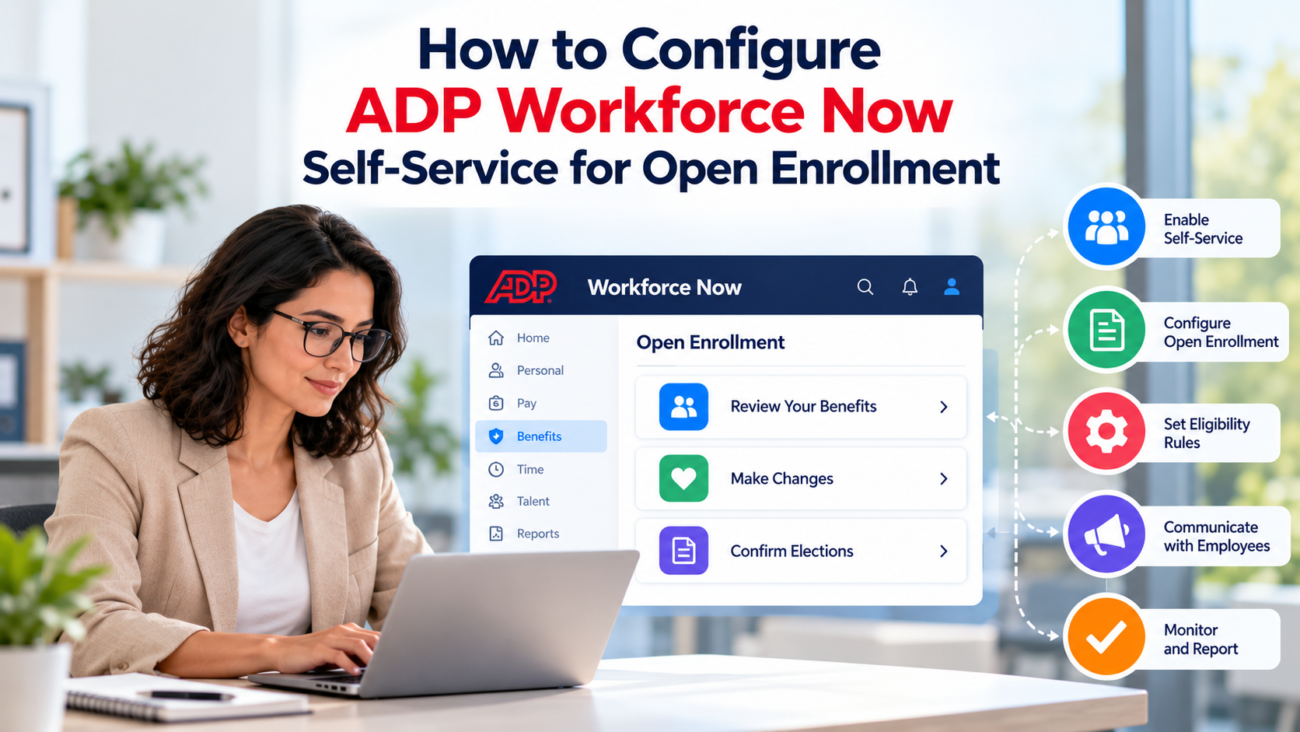
Open enrollment becomes difficult when the system opens too early. The plan year and eligibility logic should agree. Rates, deductions, documents, and employee access should match them. A clean ADP Workforce Now open enrollment setup starts with the plan rules. It ends with a tested employee path that produces the right election, deduction, and carrier record.
The configuration work matters because employees see only the front end. They don’t see the rules behind each choice. Those rules include eligibility, payroll codes, coverage tiers, effective dates, and carrier mappings. If those pieces disagree, employee self-service can collect a valid-looking election. That can create payroll or carrier cleanup later. This guide explains how administrators can configure ADP Workforce Now Self-Service for open enrollment. It covers setup, testing, launch, monitoring, and closeout.
TL;DR
A reliable ADP Workforce Now open enrollment cycle starts before employees are invited into Self-Service. Build or confirm the new plan year and check each plan’s eligibility rules and rates. Map payroll deductions and decide how prior elections should behave. Load required documents, confirm dependent rules, and test the employee path with representative users. During the enrollment window, monitor completion and exceptions instead of waiting for the deadline. After the window closes, reconcile elections against payroll and carrier records. Finish that check before the first affected payroll and coverage effective date.
· Confirm the new plan year and every plan offered during enrollment.
· Check eligibility by class, location, status, waiting period, and effective date.
· Validate employee and employer costs against the intended coverage tier.
· Test Self-Service as an employee before opening the window.
· Reconcile final elections with payroll deductions and carrier data after close.
How Self-Service Open Enrollment Works In ADP Workforce Now
ADP Workforce Now Self-Service lets eligible employees review plan choices. They can then submit benefit elections for the next plan period. ADP describes benefits enrollment as a period when employees can review or change employer-sponsored benefits. Its current benefits enrollment guide says online enrollment can include medical coverage and savings accounts. It can also cover dependents, beneficiaries, and supplemental benefits. The exact options employees see depend on the employer’s configuration. The employee screen is the last step in a larger administrative chain.
For ADP Workforce Now open enrollment, the employee experience comes from 4 connected settings. Those settings are plan design, eligibility, cost, and enrollment rules. ADP’s current product material says the ADP Workforce Now benefits module supports step-by-step plan creation. It also supports configurable eligibility and cost-sharing details. Administrators can preview employee views before plans go live. That makes the preview useful. But it doesn’t replace a full transaction test from login through payroll and carrier output.
The practical goal of employee self-service enrollment is simple. Each eligible person should see the correct choices and understand the cost. The employee should be able to add required dependent information and make an election. HR should then be able to track completion and identify exceptions. It shouldn’t have to rebuild the employee’s election by hand. If a plan, rate, or eligibility rule is wrong, Self-Service can still work as configured. The business result will still be wrong.
A useful distinction is active versus passive enrollment. In active enrollment, employees are expected to make a new election for the coming plan year. In passive enrollment, some current elections may carry forward unless the employee changes them. The plan’s rules control that treatment. Your benefits enrollment setup should make that decision explicit for each benefit. Spending accounts, waived coverage, and replacement plans may need different treatment from continuing medical plans.
What To Confirm Before You Configure The Enrollment
Start by freezing the business rules that the system must enforce. The ADP Workforce Now open enrollment configuration shouldn’t expose unresolved business rules. Settle the carrier renewal, contribution rule, eligibility class, and payroll schedule first. Use a short control table before you build the employee path.
| Setting | Confirm Before Configuration |
| Plan year | Start date, end date, and coverage effective date |
| Enrollment window | Opening date, closing date, cutoff time, and time zone |
| Eligibility | Benefit classes, status rules, waiting periods, and location rules |
| Cost | Employee rates, employer contributions, deduction codes, and pay frequency |
| Election behavior | Active or passive treatment, waivers, and replacement plans |
| Dependencies | Dependent rules, beneficiary rules, evidence requirements, documents, and carrier path |
The benefits team should also decide what happens to existing elections. For each plan, mark what happens to the prior election. A prior election may continue or require a new choice. It may also terminate or move to a replacement plan under the documented rules. ADP’s current ADP benefits overview says administrators can set plan types and eligibility. They can also set contributions and cost sharing before previewing employee views. Use that preview after business decisions are final.
Check your Section 125 plan rules before assuming employees can change pre-tax elections at any time. The IRS cafeteria plan rules say the written plan must describe the benefits. It must also establish eligibility and election rules. That document should drive how you treat pre-tax medical premiums inside ADP Workforce Now benefits. It should also govern health FSAs and other cafeteria plan elections.
Create a configuration worksheet before touching production. Use 1 row per benefit plan. Record the plan name and plan year. Add the eligibility group, coverage levels, and rates. Record the deduction code, effective date, carrier connection, dependent requirements, documents, and enrollment behavior too. It gives HR, payroll, and the broker or carrier team one place to resolve mismatches.
Build The New Plan Year And Review Every Benefit Plan
Build the new plan year from approved renewal terms. Don’t assume a copy of the prior year is correct. A copied plan can carry forward old settings. These may include a rate, waiting period, deduction mapping, document, or eligibility group. If you copy a prior plan, treat every copied field as unverified. Check each field against the new plan documents.
For each plan, confirm the employee-facing name and benefit type. Then check the plan year dates and coverage effective date. Review coverage levels, employee cost, employer contribution, and dependent rules too. Then compare the system values with the carrier renewal or signed plan record. The employee-facing name matters. Vague labels such as “Medical Plan 1” make comparisons harder. They can also increase support questions during ADP Workforce Now open enrollment.
If you’re configuring HSA-compatible coverage for 2027, check the federal limits first. Then load contribution guidance or plan references. The IRS 2027 HSA limits set the self-only annual HSA contribution limit at $4,500. The family limit is $9,000. The 2027 HDHP minimum deductibles are $1,750 and $3,500 respectively. The out-of-pocket maximums are $8,700 for self-only coverage and $17,400 for family coverage. Employee guidance in the enrollment experience should use the plan year’s correct figures.
Keep plan design data separate from general education. The Self-Service plan card should describe what the employer offers. Linked documents can provide the formal coverage detail. If a medical plan changed, update the employee-facing text. Check the network, deductible, pharmacy terms, and employer funding so last year’s terms don’t remain. A benefits enrollment setup can look finished while still showing old terms.
Before moving on, run a plan inventory report or equivalent review. Compare the configured plan list with the renewal list. Every active plan should have a clear purpose for the new plan year. Every retired plan should be excluded from the new employee choice path. A plan that remains technically active can still appear to employees. It may also feed downstream data after HR intended to replace it.
Set Eligibility Rules Before Employees Can See Plans
Eligibility is the gatekeeper for the whole open enrollment configuration. A plan can have correct rates and documents. But the wrong employee group can still see the wrong option. This happens when eligibility logic is too broad or too narrow. Review the source fields used in eligibility against the plan document. These may include employment status, benefit class, location, or business unit. Scheduled hours, union status, or service date may also matter.
Test eligibility with safe users that represent the workforce categories that matter. Include full-time and part-time employees. Add a new hire who is still in a waiting period. Test an employee on leave if the plan treats leave differently. Test at least 1 employee in every location or class that changes plan access. A good ADP Workforce Now open enrollment test proves both sides of each rule. The right employee sees the plan. The wrong employee doesn’t.
Effective dates need their own check. If coverage begins January 1, check plan eligibility and the enrollment effective date. Then confirm payroll deduction timing for the same period. A new hire who becomes eligible after the annual window may need a new-hire enrollment event. An employee who loses other coverage may have separate special enrollment rights.
For applicable large employers, employee contributions can also affect ACA affordability work. The IRS published a 2027 affordability percentage of 10.22%. That required contribution percentage applies to certain premium tax credit affordability rules. It applies for plan years beginning in 2027. ADP configuration doesn’t replace an employer’s ACA analysis. Confirm the employee contribution structure and the measurement or affordability method before enrollment opens.
When eligibility rules are stable, compare the eligible count by plan with the population HR expects. A sudden jump or drop can point to a rule problem. Check class codes, status values, locations, and date rules against the design. Resolve that before employee self-service enrollment goes live. A mass eligibility correction during the window can change what employees already saw.
Configure Rates, Employer Contributions, And Payroll Deductions
Verify rate calculations outside the setup screen. For every plan and coverage tier, calculate what an employee should pay per payroll. Compare that amount with what ADP shows. Include employer contributions where employees can see them. Then check whether rates vary by age, salary, tobacco status, or coverage level. Location or another permitted plan factor may also affect the rate.
Map each employee-paid benefit to the correct payroll deduction code and confirm the effective date. A benefits election that doesn’t produce the intended deduction creates a gap between enrollment and payroll. The employee confirmation can still look correct. ADP’s carrier integration details list policy data, rates, and eligibility as part of connected carrier processes. Waiting periods and enrollment changes are included too. Review rates and deductions before carrier transmission.
Pay-frequency math deserves a separate test. If the annual employee contribution is split across 24 semimonthly pays or 26 biweekly pays, check the math. Confirm how the system handles extra payrolls, partial periods, arrears, and effective dates. Don’t infer the answer from the annual premium. Use the configured payroll calendar and the organization’s approved deduction policy.
For HSA or FSA contributions, validate the employee election field and any employer funding. Confirm that the displayed annual maximum matches the plan year. Check that the system doesn’t allow an election outside plan rules. If a future-year indexed limit has not been published, keep any placeholder outside employee view. Update it after authoritative guidance is issued.
The benefits enrollment setup should also handle waived coverage cleanly. If employees can waive medical coverage, define the waiver rules. Decide whether a reason or proof of other coverage is required. Confirm how the waiver appears in reports. A waiver is still an election result and should be auditable after the window closes.
Set Up The Employee Self-Service Enrollment Experience
The employee self-service enrollment path should make the next action obvious. Employees need a clear enrollment task and the correct deadline. They also need plan details and a visible way to submit or confirm elections. ADP’s current employee self-service guide lists annual open enrollment among common Self-Service functions. It also covers per-pay-period deductions, employer contributions, benefit details, and dependent updates. That gives administrators a useful checklist. It shows what employees should be able to review without opening an HR ticket.
Configure the annual enrollment event in the benefits administration area that controls the plan-year employee enrollment experience in your current ADP Workforce Now tenant. ADP’s current benefits materials support configurable plan setup, employee views, enrollment communications, reminders, and progress tracking, but page labels can differ by package and release. Use the labels in your tenant instead of copying an older menu path.
1. Open or create the annual enrollment event or profile for the new plan year. Set the opening date, closing date, cutoff time, time zone, and coverage effective date.
2. Attach only the plans that should appear in this event. Confirm the plan-year version, eligibility rule, rate, employer contribution, and payroll deduction mapping before employees can see the plan.
3. Set election behavior plan by plan. Mark which benefits require a new election and which may carry forward. Define waivers and replacement-plan treatment where the plan rules allow them.
4. Set employee access for the event. Confirm the eligible population, the Self-Service and mobile access used by your tenant, employee instructions, and the documents shown with each plan.
5. Configure the dependent and beneficiary requirements that apply during open enrollment. If evidence, approval, or another review is required, confirm who receives it and which status the employee sees while it is pending.
6. Check the review, submit, and confirmation behavior. A completed election should show the selected coverage, covered dependents, employee cost, and final event status. If a confirmation is available, verify that the employee can retain or revisit it.
7. Set communications and reminders by completion status, then confirm that administrators can track employees who have not started, are in progress, have submitted, or need exception review.
8. Before activation, preview the employee view and run representative test users through the full event. Confirm eligibility, rates, dates, carry-forward behavior, dependent rules, required approvals, submission, confirmation, administrator status, payroll deduction output, and carrier output.
Employee self-service enrollment also depends on access. Before launch, identify employees who haven’t registered. Also flag anyone who may not be able to use the normal web or mobile route. ADP’s ADP login support explains employee registration and account recovery steps. So HR should have a separate access-remediation process ready before the enrollment deadline becomes urgent.
Decide how much choice detail belongs on the selection screen. Employees should see the plan name, coverage level, and employee cost. Add the key plan information needed to distinguish one choice from another. Longer legal or coverage detail belongs in the plan documents. This keeps the ADP Workforce Now open enrollment configuration readable. Employees can still get the information needed to make an informed election.
Finish the employee self-service enrollment flow by confirming the review-and-submit step. Employees should be able to see all pending elections together. They should also see missing required fields and know when an election becomes final. If the system produces a confirmation, test it. It should reflect the submitted coverage, dependents, and cost. The employee can then compare that record with later deductions.
Configure Dependents, Beneficiaries, And Life Event Rules
Dependent setup needs more attention than simply turning on an “add dependent” option. Confirm which dependent relationships are allowed and what identifying information is required. Then check documentation rules and any dependent eligibility limits. The same person may appear as a health-plan dependent. That person may also be a beneficiary for life insurance. So test those roles separately.
During ADP Workforce Now open enrollment, employees should know what adding a person to the profile means. They should also know whether that action adds the person to coverage. Those are different actions in many benefit systems. The employee self-service enrollment path should make the distinction clear. Adding a spouse or child to the profile is one action. Enrolling that person in medical, dental, or vision coverage can be another.
Annual open enrollment and midyear life-event workflows should use separate rules. For the annual event, keep the enrollment window and plan-year choices limited to open enrollment. If a new or replacement plan also needs to appear in new-hire or qualifying-life-event workflows after the annual window closes, update those event rules separately and test them outside the open enrollment event.
If your plan requires dependent verification, decide when documentation is collected. Define what happens while verification is pending. Don’t make the employee guess whether coverage is approved. The system status and HR process should use the same case definitions. The carrier record should match those definitions for pending, accepted, rejected, and incomplete cases.
Beneficiary rules should also be tested for plans that require a beneficiary before submission. Check primary and contingent beneficiary behavior. Test percentage validation. If the plan permits trusts or organizations, test those entries too. These tests belong in the benefits enrollment setup. A missing beneficiary can block completion even when the rate and eligibility are correct.
Add Plan Documents, Notices, And Decision Support
Documents should match the plan option the employee is looking at. Load the current Summary of Benefits and Coverage where required. Add current plan summaries and carrier materials that explain the offered option. Include the employer’s enrollment guide if it explains plan differences. The Department of Labor maintains current SBC guidance and templates for group health coverage. So use the carrier or plan’s final SBC rather than last year’s copy.
The Summary Plan Description explains how an ERISA-covered plan operates. DOL’s plan information rules state that participants are entitled to receive the SPD. It explains the plan’s rules and operation. ADP Workforce Now benefits can be part of the delivery and access process. But the employer should confirm that its document-distribution method meets the applicable disclosure rules.
Prescription drug notices may have a separate timing requirement. CMS creditable coverage rules require an annual disclosure to Medicare-eligible individuals when the rule applies. It must be provided before October 15 each year, along with other required disclosure times. Other disclosure times also apply. If your annual enrollment materials include this notice, confirm the audience and timing.
Decision support can help employees compare options. But it should sit on top of correct plan data. If your ADP Workforce Now benefits package includes plan comparisons or decision support, check the source data first. Validate the premium, deductible, account contribution, and plan details before relying on the recommendation experience. A well-presented comparison built on an old rate is still wrong.
Keep document titles plain. “2027 Medical PPO SBC” is easier to use than an internal carrier file name. “2027 Benefits Guide” is clearer than a file with a renewal project code. The open enrollment configuration should help employees match each document to the plan shown on the screen.
Set The Open Enrollment Window And Employee Communications
The ADP Workforce Now open enrollment window should give employees time to review changes. It should also leave room for questions. It also needs to close before HR and carriers need final data. Set the opening date, closing date, time zone, and any internal cutoff rules clearly. Then verify what happens at the deadline. Check whether in-progress elections stay editable. Confirm how unsubmitted and passive elections are handled.
Communication should start before the portal opens. Employees need the dates and key changes. Tell them whether action is required, how to access ADP, and where to get help. ADP’s open enrollment communications article recommends repeated communication across channels. It also suggests using methods that fit where employees work. Those methods can include portal, mobile, email, or physical communication.
Use reminders based on status rather than sending the same message to everyone. An employee who hasn’t started needs an access-and-deadline reminder. An employee who started but hasn’t submitted needs a completion reminder. An employee who already submitted should receive confirmation and only material corrections. This keeps employee self-service enrollment communication useful and reduces noise.
Make deadline language exact. State the date and local cutoff time, then state what happens if the employee does nothing. Avoid vague deadline phrases such as “complete soon” or “enrollment ends Friday.” State the cutoff time. Include the time zone when it matters. The benefits enrollment setup and communications should use the same deadline wording everywhere.
Before launch, rehearse the support process. HR should know who handles access problems and plan questions. It should also know who can correct eligibility or fix payroll and carrier mapping. That keeps a routine employee question from bouncing across teams. It matters most during the busiest days of ADP Workforce Now open enrollment.
Test The Configuration From The Employee View
Employee self-service enrollment testing should follow real employee scenarios from start to finish. Preview tools are useful for layout. A full test should begin with employee access and continue through each plan choice. It should end with the records that HR, payroll, and carriers receive. Treat the open enrollment configuration as a transaction chain rather than a set of screens.
Build a test matrix with representative cases. Include employee-only and family coverage. Add a waiver and HSA-compatible coverage. Include dependent and beneficiary changes, evidence-of-insurability cases, and every class that changes plan access. Add at least 1 ineligible case for each restricted plan.
Run each test in the same order:
1. Sign in with the employee’s assigned access.
2. Confirm the plans, coverage levels, cost, and required documents shown.
3. Add or change dependents and beneficiaries when the scenario requires it.
4. Submit the election and verify the employee confirmation.
5. Inspect the administrator record, deduction result, effective date, and carrier output.
Record the expected result before each test. This makes testing a comparison between expected and actual behavior instead of a visual review.
For the administrator test, ADP’s current enrollment tool features include employee elections and life event changes. They also include communications, reminders, and an open enrollment progress dashboard. Use those functions as test points. Check the administrator view to confirm that the completed employee event has the expected status.
Don’t approve the benefits enrollment setup based on one successful test employee. Run enough cases to cover every rule that changes what an employee can see or pay. When a test fails, correct the source rule. Then rerun the same scenario from the beginning. Confirm that the fix didn’t create a new issue farther downstream.
Launch Open Enrollment And Monitor Completion
Launch only after the final test cycle is signed off. The approval should include the people who own benefits, payroll, and carrier data. On opening day, use a small early group first if your process allows it. Watch for errors before the largest employee traffic arrives. The first completed elections can expose a production issue. It may involve permissions or a calculation that didn’t fail in testing.
During ADP Workforce Now open enrollment, monitor completion every business day. Separate employees into useful status groups such as not started, in progress, submitted, and exception cases. The dashboard should guide action. HR should also compare eligible population totals with event totals. That check prevents missing events from hiding inside a completion percentage.
Watch for patterns in support requests. If several employees ask why they can’t see the same plan, investigate eligibility first. Don’t answer each ticket as an isolated case. If many users report the same cost surprise, compare the displayed rate with the configuration worksheet. Repeated questions are often a signal that a rule or explanation needs correction.
Avoid making live plan changes casually after employees have started. If a rate, eligibility rule, or plan document must change, identify affected employees first. Then decide whether submitted elections need to be reopened. Keep a change log with the time, reason, and affected plan. Record the employees affected and the validation performed after the correction.
Employee self-service enrollment should reduce routine administration. But it still needs active oversight during the window. HR resolves exceptions and protects the final data set.
Reconcile Elections With Carriers And Payroll
Reconciliation begins before the enrollment event is archived. Pull the final enrollment population. Compare it with the carrier and payroll results expected for the new effective date. Prove that the submitted election matches the carrier record and payroll deduction.
Start with enrollment counts by plan. Compare counts by coverage tier where those tiers apply. Then investigate unexplained changes from the prior period. But review it when carrier or payroll totals tell a different story.
Next, test payroll deductions. Compare the annual or per-pay employee cost with the scheduled deduction. Check the first affected payroll. Check new and stopped deductions first. Then review changed amounts and employer contributions. Pay special attention to benefits that begin between payroll periods.
Carrier reconciliation should confirm subscriber and dependent coverage. Check effective dates, plan codes, and termination of old coverage where required. If your organization uses a carrier connection, review transmission status and exceptions. A successful connection doesn’t mean every record was accepted. A file can transmit successfully and still contain a record the carrier rejects.
For the open enrollment configuration, define who owns each exception. HR may own eligibility, while payroll may own deduction timing. A carrier or broker contact may own plan-code mapping. Employees are less likely to see a missing ID card or an unexpected payroll deduction.
What A Reliable Open Enrollment Configuration Looks Like
A reliable ADP Workforce Now open enrollment setup is traceable. HR should be able to follow a plan rule through the employee election and downstream record. HR can explain why an employee saw a plan and where the rate came from. It can identify the deduction code and supporting document. It can also confirm whether the carrier accepted the enrollment. That traceability matters more than having a polished enrollment screen.
After the enrollment window closes, limit changes to approved corrections and document each exception. Keep the final election set stable while payroll and carrier reconciliation is completed. If an election must be reopened, record the reason, approver, affected employee, and the validation completed after the change.
Treat the completed configuration as the baseline for next year. Save the approved worksheet, test matrix, issue log, final counts, and reconciliation results. When the next ADP Workforce Now open enrollment cycle starts, those records show what worked. They also show where the prior cycle needed correction. That reduces the chance of carrying forward old settings blindly.
FAQs
How Do I Start ADP Workforce Now Open Enrollment Setup?
Start with the approved plan year, plan list, and eligibility rules. Then confirm rates, employer contributions, and payroll deduction mapping. Then configure the employee event and Self-Service experience. Don’t open enrollment until representative employees have been tested. The test should run from login through final election and downstream records.
Where Do Employees Find Open Enrollment In ADP Workforce Now?
The exact navigation can vary by ADP Workforce Now package, permissions, and product updates. Employees generally access their assigned benefits enrollment task through Self-Service on web or mobile. HR should give employees the current path used in its own tenant. Avoid copying a generic menu path from an older guide.
Can Employees Complete Enrollment From A Mobile Device?
ADP states that its ADP Workforce Now benefits experience supports mobile enrollment. Employees can also access it through the ADP Mobile app. Mobile availability can vary by the configured benefit and connected carrier process. Test each employer-specific plan action that employees may need. Test the same employee self-service enrollment scenario on mobile. Do that before telling employees the full event can be completed there.
Should Open Enrollment Be Active Or Passive?
That choice depends on the plan rules and the employer’s enrollment policy. Active enrollment requires employees to make elections again. Passive enrollment may carry certain prior elections forward. Review each benefit separately. Medical coverage, spending accounts, waived coverage, and replacement plans may need different treatment.
How Should I Test Eligibility Before Enrollment Opens?
Use representative employees from every group that changes plan access. Cover full-time and part-time staff, locations, benefit classes, and waiting-period cases. Record what each person should see before testing. A good open enrollment configuration test confirms both eligible and ineligible outcomes.
How Do I Check Rates Before Employees See Them?
Calculate the expected employee cost for each plan and coverage tier outside the system. Then compare it with the employee view. Include employer contributions and pay-frequency conversion where applicable. Repeat the check for any variable rate. Age, salary, location, tobacco status, or another permitted plan factor may affect it.
What Should I Do With Payroll Deductions During Setup?
Map each employee-paid plan to the intended deduction code and effective date. Test the amount that will hit payroll after an employee submits an election. The benefits enrollment setup isn’t complete until the enrollment record and payroll result agree.
How Do I Handle Dependents During Open Enrollment?
Define allowed dependent relationships, required identifying data, documentation rules, and plan-specific eligibility. Then test adding a new dependent and adding an existing dependent to coverage as separate actions. Employees should be able to tell whether a person is only stored in the profile. They should also see whether that person is enrolled in a plan.
Can Employees Change Elections After Open Enrollment Closes?
Usually, plan elections are limited after the annual window. The plan and applicable law may permit changes for certain special enrollment or qualifying life events. The exact rule depends on the benefit and plan document. Configure midyear event workflows separately from ADP Workforce Now open enrollment.
What Documents Should Be Available In Self-Service?
Use current documents that support the plans being offered. These may include the applicable SBC, plan summary materials, and the employer’s benefits guide. Remove or archive old documents so employees don’t compare a new election against prior-year terms. ADP Workforce Now benefits should point employees to the document that matches the plan on screen.
How Long Should The Enrollment Window Stay Open?
There isn’t one universal federal duration for employer open enrollment. Set a window that fits the plan’s effective date and carrier deadlines. Account for payroll timing and the employee education needed. State the exact closing date and time in the system and every employee communication.
How Do I Know Who Hasn’t Finished Enrollment?
Use the enrollment progress or activity reporting available to your benefits package. Compare it with the eligible population. Separate employees who haven’t started from those who are in progress. That lets HR send useful reminders. Employees who already submitted don’t need the same message.
What Should I Reconcile After Enrollment Closes?
Compare final elections with carrier enrollment and payroll deduction records. Check plan, coverage tier, dependents, effective date, employee cost, and termination of replaced coverage where relevant. Resolve rejected carrier records or deduction mismatches before coverage and payroll changes take effect.
What Is The Biggest Self-Service Configuration Mistake?
Opening the employee event too early creates avoidable risk. Test eligibility, rates, deductions, and plan documents together first. Self-Service can accurately apply a bad rule. Test complete employee scenarios before launch. Compare expected results with actual results.
How Often Should The Configuration Be Reviewed During Enrollment?
Review enrollment status and exceptions every business day during the active window. Check more often near the deadline if volume rises. Look for repeated support issues, missing populations, rate questions, and failed downstream records. ADP Workforce Now open enrollment needs monitoring until the final data has been reconciled.
