Picture an illustrative sales director who opens a pipeline report and finds that half her reps’ customer emails are missing. The reps swear they’ve been emailing prospects daily. Their messages appear on the activity timeline in Salesforce, yet the report shows nothing. A colleague explains that the emails were captured by Einstein Activity Capture, and that for years captured email didn’t count as standard activity data. Another colleague says that changed in 2025. The director wants a straight answer on which email integration her team should use, and what it’ll cost her in reporting and storage.
This article compares Einstein Activity Capture with the other ways to connect Outlook and Gmail to Salesforce: the mail-client integrations, a BCC address and third-party tools. It draws on 5 sources, and several have a stake in the answer. Revenue Grid, a competing vendor, published, sponsored or promoted 3 of them, and the other 2 come from consultancy-run sites. Features and limits changed in 2025, so each claim is dated and attributed. Check current behavior in Salesforce’s own documentation before you decide.
TL;DR
- Einstein Activity Capture changed in 2025. Older articles say captured email can’t be used in standard reports or flows. SalesforceBen reports that a Summer ’25 option saves captured email as standard Task and Email Message records, which makes it reportable. Orgs set up earlier may need to migrate, so check how your org is configured. Verify it.
- The mail-client integrations log manually. A Revenue Grid comparison, published by a competitor, says the Outlook and Gmail integrations log email by hand unless Einstein Activity Capture is added for automatic sync. They suit reps who log selectively and want single-click logging, templates and a record sidebar inside the inbox.
- Compare cost and storage together. In an illustrative 80-rep team, a $50 add-on costs $48,000 a year and a $30 third-party tool $28,800, though both prices are unsourced. Stored email also uses data storage, so project the volume before you switch it on.
Why this choice matters
Email is the richest record of how a deal is going, and most of it never reaches the CRM unless something puts it there. Reps log some emails by hand, forget most and skip the awkward ones. A capture tool fills the gap automatically, which gives managers a more complete picture and gives reps back the time they’d spend on data entry. The question is which tool, and what you accept in exchange: storage location, retention, reporting limits, cost and the effort of administration.
The choice also affects trust. Reps accept a capture tool only when they believe it records the right emails and ignores private ones. Managers accept it only when the data lands where their reports can use it. Legal and security teams accept it only when they know where the data lives and how it can be removed. A tool that satisfies a single group and annoys the rest fails, so involve all 3 before you pick.
The ground has also moved. Several sources describe changes in 2025 and 2026, including a new way to store captured email, retirement of older reporting features and Microsoft’s retirement of an older mail interface. A comparison written in 2022 may be wrong on the points that matter most. Treat any article, including this article, as a starting point, and verify current behavior against Salesforce’s release notes and help pages for your edition.
What each approach is
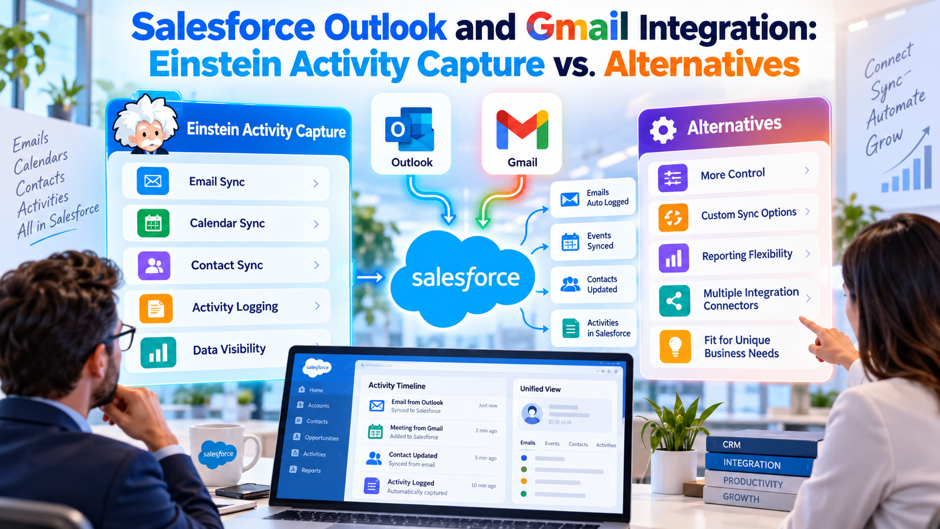
Einstein Activity Capture runs in the background. It connects Salesforce to Microsoft 365 or Google Workspace and pulls email and calendar items automatically, then links them to related accounts, contacts, leads and opportunities. Salesforce Break describes it as removing manual logging, with the admin connecting the org to the mail provider and users then connecting their own accounts. Data types sync separately: events, contacts and email each have their own settings, so you can switch on only what you need.
The Outlook and Gmail integrations sit inside the inbox. According to the Revenue Grid comparison, these work client-side, with a sidebar in Outlook or a Chrome extension or add-on for Gmail. Reps see the Salesforce record next to the email, log messages with a click, create leads or opportunities and insert templates. Logging is manual by default. The same page says automatic sync requires adding Einstein Activity Capture, and that the Gmail extension works in Chrome only.
Email to Salesforce uses a BCC address. Each rep gets a unique address, and copying it on an outgoing email logs the message against matching records. The Revenue Grid page describes it as outbound only, manual and without calendar sync or a sidebar, and as a fallback on Professional Edition. It works with any mail client, which makes it useful for teams on unusual setups, but it depends on reps remembering to add the address to every message.
Third-party tools add their own sync. The Revenue Grid page names Revenue Grid, Cirrus Insight, Riva, Groove by Clari, LinkPoint360 and Veloxy. They differ on whether they run client-side or server-side, support custom objects and create standard activity records. The only entries with detail come from the publisher, which sells Revenue Grid, so verify any capability claim by trialing the tool against your own org. Run a trial. Ask for a trial license first.
Option comparison
The table summarizes what the Revenue Grid comparison reports, with corrections from the later SalesforceBen and Salesforce Break articles where they differ. The comparison comes from a vendor that sells a competing product, and the SalesforceBen piece is a consultant’s summary of a release, so treat the table as a set of questions for a pilot. Salesforce’s own pages remain the authority on what each option does today. Check each cell.
| Option | How it works | Records created | Main limit |
| Einstein Activity Capture | Server-side sync with Microsoft 365 or Google Workspace | Timeline items; standard Task and Email Message records with the Summer ’25 option | Storage and retention rules; setup differs by org |
| Outlook integration | Sidebar in Outlook; manual logging by default | Activity records for logged emails | Calendar sync and automatic capture need Einstein Activity Capture |
| Gmail integration | Chrome extension or add-on; manual logging by default | Activity records for logged emails | Chrome only for the extension |
| Email to Salesforce (BCC) | Rep copies a unique address | Activity records matched by address | Outbound only; manual |
| Third-party tools | Vendor-specific, client-side or server-side | Varies; some create native activity records | Extra license cost and vendor review |
What the capture tool records
- Email. Messages between your users and outside contacts are matched to Salesforce records and shown on the activity timeline. Users choose full capture or header-only capture, which records sender, recipient, date and time, according to SalesforceBen. Internal or excluded emails aren’t stored. Decide which mode fits your privacy rules, since header-only reduces both storage and exposure. Decide per group which mode applies, and record the choice so new admins can see why it was made, because the setting affects storage and exposure.
- Events. Calendar events sync between Microsoft or Google and Salesforce. Salesforce Break recommends syncing from the external calendar into Salesforce, because that direction updates continuously, while syncing out can take 15 minutes or more. A 2-way sync is possible but prone to conflicts, and the external calendar wins in a clash. Pick a direction per user group and document it. Document the direction per user group. Check how conflicts are handled.
- Contacts. Contacts can sync in both directions. Salesforce Break advises treating Salesforce as the source of truth so personal edits in a mail client don’t overwrite shared CRM data. The Automation Champion article adds that contact sync options are limited and hard to avoid. Test with a small group first, and watch for duplicates and unintended overwrites. Pilot it first and check for duplicates before widening access to the full team.
- Insights and metrics. Paid licenses added activity analytics, such as last activity date and inactive days. SalesforceBen says Activity 360 Reporting, Activity Metrics and the Activities Dashboard are slated for retirement in Summer ’26, and Salesforce Break says they’re unavailable unless previously configured. If your reports depend on these features, ask Salesforce what replaces them in your edition. Ask Salesforce what replaces them in your edition before you plan around any of them.
Where captured data lives and how long it stays
Older articles stress that captured data sits outside the core Salesforce database. Automation Champion, writing in 2022, says data from connected Microsoft or Google accounts is stored in Salesforce’s AWS infrastructure, and that emails appear as virtual records on the timeline rather than as physical records. The Revenue Grid article makes the same point more pointedly. Events and contacts become standard records once synced, while email, until the Summer ’25 option, stayed virtual.
Retention depends on your license. Salesforce Break says orgs with only standard capture keep data for roughly 3 to 6 months, with a request to Support required for changes. Orgs with at least 1 paid license keep 24 months by default, extendable up to 5 years through Support. The older articles give 6 months for standard and 24 for paid. The numbers differ by source and date, so ask Salesforce which rule applies to your org, and get it in writing.
Retention matters more than it first seems. A rolling window means old emails drop off, and the Revenue Grid article says older activity is permanently deleted with no backup. If your deals run 18 months or you need a record for audits, a short window can erase evidence you’ll want. The Summer ’25 option stores email as standard records, which changes the picture, but it brings storage costs, so decide your retention policy before you enable it.
Reporting and automation before and after the 2025 change
The sharpest criticism of capture tools used to be reporting. The Revenue Grid and Automation Champion pieces say captured emails aren’t logged as standard Tasks or Events, so standard activity reports can’t include them and flows can’t act on them. The Revenue Grid comparison also says legacy captured data can’t be queried through the API. Those statements were accurate for the legacy behavior, and they explain why many admins treated capture as a display feature rather than a data source.
SalesforceBen reports that Summer ’25 added an option, Sync Email as Salesforce Activity, that saves captured emails as native Task and Email Message records. The article says these records show in reports, can trigger automation and are reachable through APIs. It lists support for Starter, Professional, Enterprise, Unlimited and Einstein 1 Sales editions, and notes that email sharing follows activity sharing. Salesforce Break says the rollout is staggered from early 2026, so availability can differ by org.
| Capability | Legacy behavior (older articles) | With the Summer ’25 option (per SalesforceBen) |
| Standard activity reports | Captured email not included | Included |
| Flow and automation | Not available for captured email | Available; a standard flow matches emails to records |
| API access | Not available | Available |
| Storage | Off-platform, virtual records | Uses Salesforce data storage |
| Migration | Not applicable | No migration path for earlier captured email, per SalesforceBen |
Privacy, sharing and compliance
Control who sees what. Automation Champion notes that privacy settings control who can see emails and events, and SalesforceBen says that with the newer option, email sharing follows activity sharing. Review your sharing model before you launch. A rep’s private discussion about a pay raise should never appear on an account timeline, and a poorly configured exclusion list can expose messages that were never meant for the CRM. Review it.
Use exclusion lists and header-only capture. Salesforce Break explains that the Excluded Addresses list applies org-wide and takes priority over user lists, and that internal domains must be added manually if there are several. Add internal domains, personal addresses and sensitive contacts such as legal counsel. SalesforceBen says internal or excluded emails aren’t stored. Remember the Salesforce Break caution that excluding addresses removes items from timelines but doesn’t necessarily delete stored data.
Know the duplicate and sharing risks. Automation Champion warns that emails sync to everyone on an opportunity team, so external partners on opportunities can create duplicate email records across multiple opportunities. Revenue Grid’s article says emails sync to the opportunity team instead of specific opportunities. If your sales process uses opportunity teams heavily, test the behavior with real deals before rollout, and decide how you’ll handle duplicates. Test it. Test with real deals.
Plan for removal requests. Commenters on the Revenue Grid article report an inability to remove stored emails containing sensitive personal information, which is an anecdote rather than a verified limitation. Even so, privacy laws and customer requests can require deletion. Ask Salesforce how captured email is deleted in your configuration, who can do it and how long it takes, and have your privacy officer approve the answer. Write the process down.
Gaps and gotchas
- Email aliases and multiple orgs. Salesforce Break lists that email aliases aren’t supported, that a single user can’t sync to multiple orgs and that Government Cloud may have restrictions. If your reps send from shared addresses or work across orgs, test those cases early. A rep who sends from an alias may find that half their email is missing from Salesforce. Test aliases early with the users who send from shared addresses every day.
- Conflict with older sync tools. The same guide says Einstein Activity Capture and Lightning Sync can’t run at the same time. If your org still uses the older tool, plan the cutover carefully, and communicate the date to users. Decide which calendar and contact data is authoritative before you switch, and take a backup of the records you can’t afford to lose. Plan the order of steps and a rollback in advance of the change date.
- Microsoft interface retirement. Salesforce Break and the Revenue Grid page both mention Microsoft’s retirement of Exchange Web Services in October 2026. Salesforce Break says capture for Office 365 moves to Microsoft Graph starting Spring ’26, and that orgs set up earlier should upgrade by August 2026, with no rollback. These dates are close or past, so confirm your status in Salesforce’s documentation now. Confirm your org’s status with your admin this week and record the answer.
- No backfill and storage growth. Salesforce Break says re-enabling capture doesn’t backfill the gap. SalesforceBen says stored emails consume data storage, suggests projecting volumes and recommends an archiving strategy if standard options don’t fit. Plan for both a gap during any outage and growth over time, and assign an owner for monitoring storage each month. Set a monthly storage check with an owner and a threshold that triggers action before the allowance runs low.
The mail-client integrations
The Outlook and Gmail integrations suit a different working style. Instead of capturing everything automatically, they put Salesforce inside the inbox. A rep reads an email, sees the contact and open opportunities in a sidebar, logs the message with a click and inserts a template. The Revenue Grid comparison lists these benefits and says logging is manual by default. That gives reps control over what enters the CRM, which some teams prefer for privacy reasons.
The trade-off is completeness. Manual logging depends on discipline, and reps under pressure skip it. A team that needs full activity data for forecasting, coaching or compliance will find gaps. The Revenue Grid page says automatic sync requires adding Einstein Activity Capture, so many teams run both: capture for completeness and the inbox integration for convenience. Ask Salesforce whether your license includes both, and what the combined setup requires. Measure it.
Both integrations need setup effort. The Revenue Grid page mentions an M365 admin consent flow in 2026 for Outlook and a Chrome extension or Google Workspace add-on for Gmail, along with limited shared-folder support and limited custom-object linking in Outlook. Those details come from a competitor, so verify them. Plan for IT involvement, a pilot group and training, since a sidebar that confuses users won’t get used. Budget IT time.
Third-party alternatives
Server-side tools aim to replace capture. Revenue Grid, Riva and Groove by Clari are listed as server-side or Salesforce-native in the Revenue Grid comparison. They typically promise automatic capture, calendar sync and support for custom objects, and some store data as native activity records. The comparison is published by Revenue Grid, so its claims about itself are marketing, and its table entries for others have no source. Verify each claim in a trial.
Client-side tools add inbox features. Cirrus Insight, LinkPoint360 and Veloxy are described as client-side, which suggests they work through a plugin in the mail client rather than through a background sync. They may add scheduling, templates and tracking. The comparison lists limited custom-object support for some. If your reps live in their inbox, a client-side tool may fit, although it depends on each user’s setup. Test them with several mail setups.
Vendor questions to ask. Ask where the data is stored, how long it’s kept, what records are created, whether reports and flows can use them and how deletion works. Ask what happens to your data if you leave, and what the pricing includes. The Revenue Grid page says its enterprise tier starts at $30 per user per month and cites a range of $10 to $30 for third-party tools, without sources. Get quotes in writing.
Security and procurement review. A third-party tool reads your reps’ email, so it needs a security review, a data processing agreement and approval from IT and legal. Ask for the vendor’s security documentation and a list of sub-processors. A tool that fails review after a successful pilot wastes weeks. Start the review early, and run it alongside the technical trial. Ask for the vendor’s documents on day 1, and give legal draft agreement alongside them, so approvals run in parallel with testing.
Cost illustration
Prices for capture and alternatives are rarely published, and the figures here come from the Revenue Grid page, which gives roughly $50 per user per month for the Full capture add-on, $10 to $30 for third-party tools and $30 for its own enterprise tier. None is sourced, so treat them as placeholders. The table applies them to an invented 80-rep team to show how the annual cost scales. Standard capture is capped at 100 users, according to the comparison.
| Scenario (illustrative) | Calculation | Annual cost |
| Full capture add-on at $50 | 80 × $50 × 12 | $48,000 |
| Third-party tool at $30 | 80 × $30 × 12 | $28,800 |
| Third-party tool at $10 | 80 × $10 × 12 | $9,600 |
| Difference between $50 and $30 | $48,000 minus $28,800 | $19,200 |
| Difference between $50 and $10 | $48,000 minus $9,600 | $38,400 |
Price is only part of the cost. Setup, training, administration, storage and the time reps spend on workarounds all count. A cheap tool that needs weekly clean-up can cost more than a pricier tool that runs quietly. Ask each vendor for a total cost estimate that includes implementation, support and any storage fees, and compare options on the basis of cost per user per year including those items. Ask for total estimates.
Planning for email storage
Storing email as standard records turns a reporting problem into a storage problem. SalesforceBen warns that stored emails consume data storage, and suggests projecting volumes. Suppose 80 reps each send and receive 40 customer emails a day over 250 working days. That’s 800,000 emails a year. If each creates an Email Message and a Task, it’s 1.6 million records. At an assumed 2 KB per record, that’s about 3.2 GB a year. The size per record is an assumption you should verify.
The effect on cost depends on your storage allowance and the price of extra storage, which I haven’t verified. Ask Salesforce how Email Message and Task records count against data storage, what your org’s allowance is and what additional storage costs. Check current usage in Setup, and project growth under a few scenarios. If the numbers look uncomfortable, consider header-only capture, tighter exclusions or an archiving plan. Ask early. Get the figures in writing.
Retention policy should come first. Decide how long you need email in the CRM for sales purposes, for audit and for legal reasons, and set rules to match. Older email can often move to an archive or be deleted on a schedule. Document the policy, get approval from legal and records management and configure the tool to follow it. A policy written after the storage alarm sounds is harder to apply.
Before you switch
- Inventory your current setup. List which users run which tool, which sync settings are on, what reports depend on captured data and which automations use it. Check whether your org has the Summer ’25 option enabled, and whether it was set up before or after that release. Salesforce Break says orgs set up earlier should update and migrate, so record your starting point. Share the inventory with finance and legal, and ask each team to flag anything they depend on that the change could affect.
- Define success measures. Decide what you want from the change: more complete activity data, less manual entry, better reports or lower cost. Set a target for each, such as the share of customer emails that appear in reports. Measure the baseline before you start. Without a baseline, you can’t tell whether the change worked, and the argument returns at the next review. Agree them with sales leadership, and put the baseline figures in writing before the pilot begins so results can be compared later.
- Pilot with a small group. Pick 10 to 15 reps across roles and teams, including some who use aliases, shared calendars or opportunity teams. Run the pilot for 4 to 6 weeks, and review samples of captured email against what the reps sent. Log problems, and agree on thresholds for expanding. A pilot catches the odd cases that documentation never mentions. Interview the pilot users weekly, and write down the issues they raise.
- Plan the cutover and communication. Choose a date, tell users what will change and when, and prepare a short guide. Take backups of key records, and keep the old tool running in parallel if the contract allows it. Assign a person to field questions during the first weeks. Review the results with leadership at 30 and 90 days. Agree who approves go-live, what would trigger a rollback and how users will report problems in the first week.
Decision matrix
| Situation | Likely fit | Reason |
| Want automatic capture and standard reporting, on a supported edition | Einstein Activity Capture with the Summer ’25 option | Native records support reports and flows |
| Reps want inbox convenience and control over what’s logged | Outlook or Gmail integration | Sidebar, templates and single-click logging |
| Mixed needs | Capture plus the inbox integration | Completeness and convenience |
| Small team on an unusual mail client | Email to Salesforce (BCC) | Works with any client, though manual |
| Need custom-object sync or special retention | Third-party tool after a trial | Vendors claim flexibility; verify |
| Strict privacy or data-residency rules | Header-only capture or a reviewed vendor | Limits what’s stored |
| Large email volume and tight storage | Header-only capture, archiving plan | Controls storage growth |
Mistakes to avoid
Relying on an old article. Many popular comparisons were written before Summer ’25 and still say captured email can’t be reported. Check the date on everything you read, including this article, and confirm behavior in Salesforce’s release notes. A decision based on outdated limits can send you toward a costly alternative you don’t need, or away from a feature that now fits. Check the date. Check the date on every page.
Turning on capture without a retention and storage plan. Teams often enable the feature to fix a reporting gap and discover the storage and privacy effects later. Decide retention, header-only versus full capture and exclusions before launch. Assign an owner for monitoring storage and reviewing exclusions each quarter, and write the rules down so they survive a change of admin. Review it each quarter. Write the policy first, then configure.
Assuming the vendor’s demo matches your org. Demos use clean data and simple setups. Your org has aliases, shared calendars, opportunity teams and old automation. Run the pilot against real conditions, and ask the vendor to explain each failure. A tool that works in a demo and fails on your edge cases wastes time and goodwill with your reps. Ask the vendor to rerun the demo on a copy of your own data, including the edge cases, and compare the results with what the sales deck promised.
Ignoring the users. Reps judge these tools by whether they save time and avoid embarrassment. Involve a few in the pilot, listen to their complaints and fix them before rollout. Explain what’s captured and what isn’t, since misunderstandings about monitoring cause resistance. A clear message from leadership about purpose and privacy makes adoption much smoother. Ask for their feedback again after 30 days, and keep a log of the changes you make in response so users can see that their input matters and shapes the rollout.
FAQs
What does Einstein Activity Capture do?
It connects Salesforce to Microsoft 365 or Google Workspace and automatically links emails, calendar events and contacts to related Salesforce records, so reps don’t have to log activity by hand. Data types sync separately. Retention and reporting depend on your license and settings, so confirm them with Salesforce for your edition. Ask Salesforce to confirm the details. Ask Salesforce to confirm the details for your edition, and test the sync with a small group before you roll it out widely.
Can captured emails now be used in reports and flows?
SalesforceBen reports that a Summer ’25 option, Sync Email as Salesforce Activity, saves captured emails as standard Task and Email Message records that show in reports, trigger automation and are reachable through APIs. Older articles say legacy captured email can’t be used that way. Salesforce Break says the rollout is staggered, so check whether your org has it. Verify it in your org. Verify it in your org, because the rollout is staggered and availability may differ.
How long does Einstein Activity Capture keep data?
Sources differ by date. Salesforce Break says standard-only orgs keep roughly 3 to 6 months, and orgs with at least 1 paid license keep 24 months by default, extendable up to 5 years through Support. Older articles give 6 months and 24 months. Ask Salesforce which rule applies to your org and get the answer in writing. Get the rule in writing. Get the rule in writing, and ask whether it can change.
Do the Outlook and Gmail integrations log email automatically?
According to a comparison published by Revenue Grid, a competing vendor, they log manually by default, and automatic sync requires adding Einstein Activity Capture. They put a Salesforce sidebar in the inbox, with single-click logging and templates. Verify the current behavior for your edition in Salesforce’s documentation, and pilot with real users. Test with real users in a pilot. Test with real users in a pilot, and ask Salesforce to confirm which license includes each feature.
Is Salesforce Inbox still available?
The Revenue Grid comparison says Inbox was retired as a standalone product, with its features moving into the Outlook and Gmail integrations, and that its mobile app stopped working in February 2024. That’s a competitor’s statement and I couldn’t confirm it from Salesforce. Check your contract and Salesforce’s documentation before you plan around Inbox. Ask your account team. Ask your account team for the current status, in writing, before you plan any purchase.
What are the main alternatives to Einstein Activity Capture?
The sources list the mail-client integrations, the BCC address for Email to Salesforce and third-party tools such as Revenue Grid, Cirrus Insight, Riva, Groove by Clari, LinkPoint360 and Veloxy. Capabilities in the comparison come mostly from the publisher and are unverified. Trial each candidate against your own org, and ask for security documentation and written pricing. Compare at least 2 options. Compare at least 2 options in a pilot, using the same reps and the same mail setups for each.
How much does email capture cost?
Prices are rarely published. The Revenue Grid page cites about $50 per user per month for the Full capture add-on and $10 to $30 for third-party tools, without sources. For an invented 80-rep team, $50 costs $48,000 a year and $30 costs $28,800. Get written quotes, and add setup, training and storage to the comparison. Compare the total cost. Compare the total cost, including setup and storage, and ask each vendor to put its quote in writing.
What should I check before turning on capture?
Confirm your edition and license, whether the Summer ’25 option is enabled, your retention and storage plan, exclusion lists, header-only versus full capture, sharing settings and alias or multi-org needs. Salesforce Break also flags Microsoft’s retirement of an older interface in October 2026. Pilot with a small group, and have legal and privacy review the design. Pilot for 4 to 6 weeks. Pilot for 4 to 6 weeks, and review the results with leadership.
