
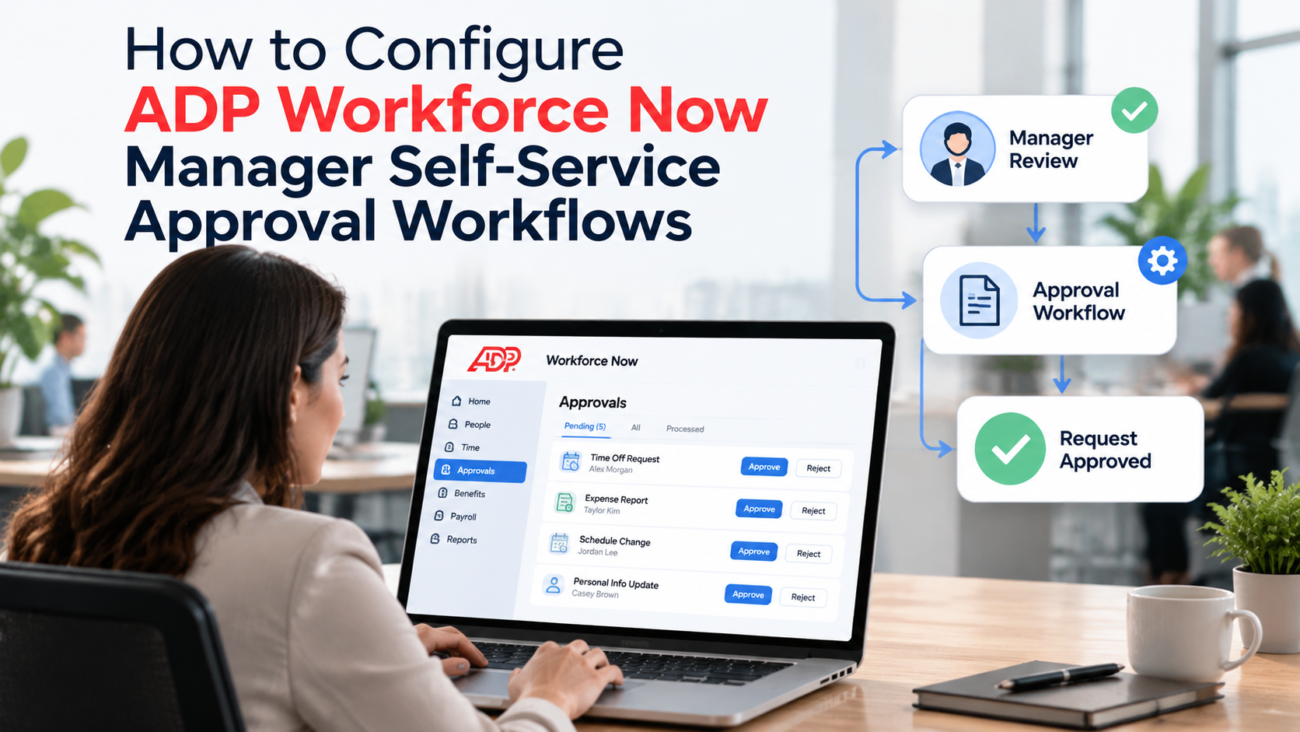
An ADP Workforce Now approval workflow decides who must sign off before a manager’s or employee’s request becomes a live change in payroll, HR, or time records. You configure it by linking each activity, such as a time off request or a pay rate change, to an approval path that names the approvers and the order they act in. Get the setup right, and each request reaches the right person with a record of every decision. Get it wrong, and requests can skip approval entirely or sit unseen in the wrong inbox. This guide walks through the setup from the ground up. It starts with the building blocks and ends with testing, so you can read it in order or jump to the part you need. The menu paths here come from ADP’s classic documentation, and labels differ across releases and in the next generation interface, so treat them as a map and confirm them against the online Help in your own tenant.
TL;DR
Every approval in ADP manager self-service starts with an activity, which you link to an approval path in your setup. Check that link first, because ADP can approve a request automatically when an activity has no path assigned. Each path routes requests through assignee types such as a work group or a level in the manager hierarchy, and routing only works when Reports To data and approver email addresses are accurate. Use escalation and delegate approvals so requests keep moving when an approver is away. Export approval history before you purge it, since it can serve as audit evidence for pay and leave decisions.
What ADP Manager Self-Service Approval Workflows Actually Do
ADP manager self-service gives supervisors a My Team area where they can act for the people who report to them. ADP’s manager self-service reference lists the kinds of actions involved. Managers can change who an employee reports to, update status for a leave or termination, change pay rate and hours, move an employee between departments or locations, and submit time off on an employee’s behalf. Employees have a matching Myself area where they request time off and update their own details.
Each of these actions is an activity, which older ADP guides also call an event. An ADP Workforce Now approval workflow sits between the activity and the database. When someone submits the activity, the workflow sends it to 1 or more people for approval or notification. The change only takes effect once the final required approval is complete.
The pieces of a workflow are laid out in plain terms in ADP’s 2013 portal administrator guide, written for the classic portal. There’s the event itself, the work group of people who receive it, the membership rules that define a work group, the workflow path that sets the route, a proxy who acts when the approver is absent, email notifications, and business rules that create exceptions to the normal route. You don’t need all of these for every activity. A basic time off approval might use only an activity and a 1-step path. A pay change for a senior role might use several of them.
It helps to know which interface you’re on before you start. ADP now markets a next generation Workforce Now that promotes flexible workflows connecting people and systems, and its screens differ from the classic practitioner menus that many public guides show. The concepts in this guide carry across both. The exact clicks may not, so keep the in-product Help open while you work.
Prerequisites That Decide Whether Routing Works
Routing depends on employee data as much as on the workflow setup. Check these items before you build or change any ADP Workforce Now approval workflow.
Reports To relationships. Assignee types that climb the manager hierarchy read the Reports To field on each employee’s position. If that field is blank or wrong, the request goes nowhere or to the wrong person. ADP’s time off workflow guidance calls a complete Reports To hierarchy a requirement for successful workflows.
Time and Attendance supervisor. For employees tracked in Time and Attendance, ADP’s guidance points to the Time and Attendance Supervisor field on the Time Position Info page when you identify who approves. For employees not tracked there, the Reports To field on the Employment Profile applies. Mixed populations need both fields kept current.
Effective dates. Reports To changes are effective dated. A request submitted before a manager change took effect can still sit with the old approver. Enter manager changes with the correct As Of Date, and review pending items after a reorganization.
Approver email addresses. ADP’s guidance states that managers, supervisors, and practitioners must have email addresses in the system. Without one, the approver may never see a notification.
Registered, active approvers. ADP’s administrator guide warns that a step assigned to a user who hasn’t registered won’t advance until that user registers or someone reroutes the step. ADP’s security management guide also covers how user accounts get suspended and reactivated. A suspended approver can stall a queue just as easily as a missing one.
Security access. Approvers need permission to see the activity and act on it. Delegate approvals also depend on the right access permissions, which the security section below covers in detail.
The Building Blocks of an ADP Workforce Now Approval Workflow
Every ADP Workforce Now approval workflow is assembled from the same small set of parts. The table below explains what each part does and when you’ll need it.
| Component | What It Does | When You Need It |
| Activity or event | The request that triggers the workflow, such as Employee – Time Off Request | Always |
| Routing path | The ordered steps the request follows | Always, or the activity may auto-approve |
| Assignee type | Defines who acts at each step | Every step |
| Work group | A named set of approvers who share a step | When several people can approve |
| Membership rule | Adds people to a work group based on attributes like department or job code | When group membership should update itself |
| Business rule | Sends certain requests down a different path | When some requests need extra review |
| Escalation settings | Sends reminders and reassigns stalled requests | For any time-sensitive activity |
| Email template | Tells approvers and submitters what happened | For most activities |
Work groups deserve a closer look. ADP’s 2013 portal administrator guide explains that you can fill a work group by hand or with a membership rule. A rule uses an attribute, an operator, and a value, and you can join comparisons. The guide’s example combines a department code with an HR manager job code, so the group always holds the HR managers for that department. The same guide warns that a step assigned to a work group with no members gets skipped. An empty group silently removes an approval step, so audit your groups whenever people change roles. That guide was written for the classic portal, so confirm in your tenant’s online Help that membership rules and empty groups behave the same way in your edition.
Map Your Activities Before You Build
Build a simple approval matrix before you configure any ADP Workforce Now approval workflow. List each activity your managers and employees will use, who submits it, who must approve it, who only needs to know, and how fast it needs a decision. A spreadsheet works fine for this. The exercise surfaces gaps early, such as a manager-submitted pay change that nobody thought to route to HR, or a status change that payroll needs to see before the next pay run. It also gives you a document to review with HR and payroll leaders so they agree on the design before you configure it. Keep the matrix after go-live. When someone asks why a request went to a certain person, the matrix shows the intended design, and your approval history shows what actually happened. Differences between the 2 point you straight to the setting that needs a fix.
Choosing the Right Assignee Type for Each Step
The assignee type controls who receives each step of an ADP Workforce Now approval workflow. ADP’s time off guidance describes 4 types, and each suits a different pattern.
Specific User
A specific user is a named person. Use it for fixed roles held by 1 person, such as the payroll manager who reviews direct deposit changes. It’s simple to set up. It also breaks the moment that person leaves, so pair it with delegation and a documented owner.
Work Group
A work group routes the step to a set of people. Use it for shared queues, such as an HR team that reviews status changes. Membership rules keep the group current without manual edits, which makes this the most durable choice for central review.
Up Submitter Manager Hierarchy
This type climbs the Reports To chain of the person who submitted the request. It’s the natural choice for employee requests from the Myself menu, where the submitter and the affected employee are the same person. A setting of 1 level sends the request to the employee’s direct manager.
Up Affected Employee Manager
This type climbs the chain of the person the request is for. Use it when a manager submits on behalf of an employee, since the submitter’s own manager may not be the right reviewer. ADP’s guidance names it for requests that a manager submits from the My Team menu.
ADP’s documentation adds 2 constraints that often catch administrators. First, an Up Submitter Manager Hierarchy step can’t follow a work group or specific user step, because the hierarchy is read from the submitter. Second, when a path has consecutive steps, each step needs a unique assignee. Plan your step order around these limits before you build the path.
How to Configure a Time Off Approval Path
Time off approval is the most common request type in ADP manager self-service, and it’s the clearest place to learn the pattern. ADP’s Spring 2018 time off workflow guide documents the classic setup under Setup, then Approval Process, then Enhanced Activity Configuration. It also carries the warning that matters most: if no path is assigned to the Employee – Time Off Request activity, the request is approved automatically. ADP doesn’t publish current menu paths outside its client help, so treat the steps below as the classic interface and confirm each one in your tenant’s online Help before you change anything.
Start by checking what’s already in place. Open Enhanced Activity Configuration and go to the Standard Activities tab. Select the Employee – Time Off Request activity and note the name in the Default Approval Path field. If it’s blank, requests are going straight through today. Then open that path and confirm who it routes to.
To build a basic path for employee requests in the classic interface, follow these steps:
1. Confirm that every employee has a Reports To manager on the Position page.
2. In Enhanced Activity Configuration, click Add to create a new path.
3. Give the path a clear name, such as Employee Time Off – Direct Manager.
4. Add a step with the assignee type Up Submitter Manager Hierarchy and a level of 1.
5. Save the path.
6. Select Employee at the top of the page, open the Employee – Time Off Requests activity, and choose your new path as the Default Approval Path.
7. Save, then submit a test request from a test employee account.
Manager-submitted requests follow a separate activity. When a manager enters time off for an employee from My Team, ADP treats it as the Manager – Time Off Requests activity. It’s also approved automatically if no path is assigned. ADP’s guidance describes a path for employees with more than 1 manager, where the employee’s second-level manager gets a chance to approve anything a manager submits on the employee’s behalf. Build that path with Up Affected Employee Manager, then assign it under the Manager heading of the same configuration page.
Timecard approvals often run alongside this. Many organizations use ADP’s time tools for timecards, and the approval order there differs. A Bard College guide for Workforce Now and Workforce Manager shows employees approving their own timecard first, which then makes it available for the manager to review and approve. Check how your time module handles this before you train managers.
Adding Multi-Level Approvals and Business Rules
A basic ADP Workforce Now approval workflow with 1 step covers routine requests. Sensitive changes often need a second or third reviewer, and some need different handling based on the values involved. ADP handles this with multi-step paths and business rules.
A multi-step path lists steps in order. Each step can be an approval or a notification. A notification step informs someone without asking them to approve, which suits a payroll lead who needs to know about a status change but doesn’t need to approve it. ADP’s administrator guide uses a tax withholding example with 2 approval steps: a payroll managers work group first, then an HR managers work group for the employee’s department.
Business rules decide when a request should leave the default path. ADP’s administrator guide describes 2 scopes. A global rule applies across all events, and an event-specific rule applies to 1 event. Each rule is built from a comparison, a calculation, or an action. The guide gives an example of each:
• Comparison: a federal tax exemption value greater than 10 sends the request to an extra HR approval.
• Calculation: when a standard salary change plus a proposed additional change exceeds a set percentage, a second manager must approve.
• Action: adding a new dependent triggers HR approval so documents can be verified.
After you create a rule, you attach it to the event as an exception and pair it with the path it should trigger. If an event has several exceptions, you can set the order they’re checked in. ADP’s guide notes that you may need to turn on priority processing to control that order. Use the Check Rule Syntax option before saving, and test each rule by submitting a real request in a test setup. These rule screens come from ADP’s 2013 guide, so check how your current edition presents them before you build.
Write rules narrowly. ADP’s own guidance warns that a loosely defined rule can trigger a workflow when it shouldn’t. A rule that sends every pay change to the CFO will bury the CFO in routine merit increases. Set thresholds that match your compensation policy, and document why each rule exists so the next administrator can maintain it.
Setting Up Notifications, Reminders, and Escalation
Notifications tell people that a request needs action or has been decided. Escalation moves a request when nobody acts. Every ADP Workforce Now approval workflow needs both, because a request that nobody sees is as bad as one that nobody approves.
ADP’s administrator guide separates global emails from event-specific emails. Global emails apply to all events, such as an assignment notice to approvers or a confirmation to the employee. Event-specific emails apply to 1 event and replace the global assignment notice for that event. The templates accept variables for the event name, the submitter, the affected employee, and the submission date. Use event-specific templates for time-sensitive requests, such as a direct deposit change, so approvers know to act quickly.
Escalation settings live on the activity. For time off approval, ADP’s 2018 guidance places them in the Escalation section of the activity in Enhanced Activity Configuration. You set:
• the number of days of inactivity before a reminder email goes to the original approver,
• the number of days before the request is reassigned to an individual or work group,
• an additional approver to receive the reassigned request.
Pick timings that fit the activity. A time off request for next week needs a short window. A job change effective next quarter can wait longer. Tie your settings to your payroll calendar too. A request that escalates after the pay period closes has already missed its chance to affect that paycheck.
How Managers Work Approvals Day to Day
Configuration only matters if managers can find and act on their queue in ADP manager self-service. In the classic interface, pending items land in the Message Center. ADP’s administrator guide describes it as the place where approvals, notifications, and employee activities collect, with a Message Center at a Glance area on the welcome page linking directly to each list.
Time off approval has its own view as well. The My Team menu includes a List of Requests page where managers can see and process pending requests and review past ones. Employees see their own submitted requests there too, which makes it the first place to check when someone asks where a request went. ADP’s administrator guide also notes that rejections appear as notifications for employees in the Message Center. Point employees there when they ask why a change didn’t go through, and ask managers to write rejection comments that someone can act on.
Mobile approval matters for managers who aren’t at a desk. ADP says managers can use the ADP Mobile app to approve timecards and time off requests and to receive alerts about pending approvals. Confirm which activities your tenant exposes on mobile, since some complex changes may still need the web interface.
Train managers to check their queue on a set schedule and to add a comment when they reject a request, so the employee knows what to fix. TechTarget’s ADP Mobile overview notes that managers can review and approve timesheets and time off requests there, which makes it a handy primer for managers new to the app. A short job aid with screenshots from your own tenant helps new managers find the right pages.
Delegation, Proxies, and Rerouting When Approvers Are Away
Approvers take leave and change jobs. Your ADP Workforce Now approval workflow needs a plan for each case, and ADP provides 3 tools.
Delegate Approvals
Delegation lets an approver hand off approval duties for a period. ADP’s 2018 time off guidance places this under Process, then Workflow Administration, then Delegate Approvals. You add the activity, pick a delegation type, and choose who receives it. The delegation type can be a number of days or a date range. The recipient can be “Up One Level,” a work group, or a specific user. Managers can also handle this from the Delegated Activities option in My Team, where they can add and edit their own delegations and see what’s been delegated to them. ADP notes that the approver or group must have permission for this task in access permissions before delegate approvals will work.
Proxies
A proxy is set on the workflow itself. ADP’s administrator guide shows a workflow set to reroute a task to a proxy 1 level up after 7 days. Proxies act as a safety net when an approver hasn’t set up delegation.
Rerouting a Pending Request
Rerouting fixes a request that’s already stuck. In the classic menus, a practitioner opens Process, then Workflow Administration, then Manage Message Center, selects the pending item on the Current tab, and chooses Reroute from Other Actions. The request can go to a person or a work group. ADP’s administrator guide also describes a Manage Active Workflow page where an administrator can reroute a step, skip a step, or cancel an event. Skipping the last step completes the event, so use it with care.
Delegate approvals suit planned absences. Proxies and rerouting cover the gaps nobody planned for. When someone leaves the company, update any specific user steps they held on the same day their access ends.
Security Access for Approvers and Administrators
An ADP Workforce Now approval workflow only protects you if the right people hold the right access. ADP controls access through security groups and access permissions. ADP’s security guide covers the security hierarchy, the security master role, and how to plan access before setup. The portal guide adds that security groups determine what each user can see and do on the site.
Scope each role before you assign it. Follow the principle of least privilege as NIST defines it. Give each user the minimum access needed for assigned tasks. For ADP manager self-service, that means managers act only on their own teams, and only the people who own workflow setup can change routing paths or business rules.
Time and Attendance adds a detail worth knowing. ADP’s Time and Attendance help explains that access to employee records there follows the security group settings on the user’s own Time and Attendance module user ID, even if the user belongs to the same group as the employee. A manager who can’t see a team member’s timecard often has a user settings gap, and changing the workflow won’t fix it.
Separate who builds workflows from who approves inside them. An administrator who can edit a routing path and also approve pay changes could remove a control step without anyone noticing. Review who holds workflow setup access each quarter, and remove it from anyone who no longer needs it.
Compliance and Audit Considerations
Every ADP Workforce Now approval workflow creates evidence that auditors and regulators may later ask for. Plan your setup with that in mind.
Wage and hour records come first. The Department of Labor’s FLSA recordkeeping fact sheet says employers should keep records on which wage computations are based, including time cards and work schedules, for 2 years. It sets 3 years for payroll records. Timecard approvals feed those records directly, so make sure approved changes and their history survive long enough.
FMLA records follow a longer rule. The FMLA recordkeeping rule requires employers to keep FMLA records for no less than 3 years, and those records include payroll and hours data along with the dates of FMLA leave. Apply the 3-year period to timecards and approvals that document FMLA leave, even though the FLSA sets 2 years for ordinary time cards. Treat both periods as minimums, since state law can require more.
Leave requests carry their own timing rules. The Department of Labor’s guidance on FMLA employer notices requires an eligibility notice within 5 business days of a leave request or of learning that leave may qualify. A time off approval that sits with a manager for a week can push HR past that window. For leave types that may involve FMLA, add HR as a notification step so they see the request on the day it’s submitted. State and local paid leave laws can add their own notice and documentation rules, so check the rules in each place where you have staff.
Internal control frameworks point the same way. The GAO’s Green Book, revised in May 2025, sets internal control standards for federal agencies and can also be adopted by nonfederal entities. Segregation of duties is among the control activities it describes. In practice, the person who requests a pay change shouldn’t be the only person who approves it.
ADP’s administrator guide also covers approval history directly. You can search, export, and purge history records. Searches use a date range of up to 90 days, exports produce a zipped CSV file, and ADP recommends exporting before any purge. Build a routine to export completed history on a set schedule and store it with your payroll records.
Testing and Troubleshooting Your Setup
Test every new or changed ADP Workforce Now approval workflow before managers use it. Create test employees with known managers, submit each activity from both the Myself and My Team menus, and confirm who receives it at each step. Then test the edge cases: an approver with no email, an empty work group, a business rule at its exact threshold, and a delegation that starts tomorrow.
Finish with a short sign-off round. Ask 1 or 2 managers and a payroll practitioner to run through the test cases in the tenant you’ll release to, and record their approval in your change log. Their feedback often catches wording in email templates or job aids that confuses real users, which a technical test won’t show.
When something breaks in production, match the symptom to its likely cause.
| Symptom | Likely Cause | Where to Look |
| Request approved with no review | No path assigned to the activity | Default Approval Path on the activity |
| Request went to the wrong manager | Outdated Reports To or effective date issue | Position data and As Of Date |
| Approver never saw the request | Missing email address or unregistered user | Approver’s profile and account status |
| An approval step was skipped | Work group has no members | Work group definition and membership rules |
| Path won’t save | Step order breaks an assignee type rule | Step sequence and assignee uniqueness |
| Business rule never fires | Rule too narrow or exceptions in the wrong order | Rule syntax and exception priority |
Keep a change log for every workflow edit. Record what changed, who changed it, and why. When an auditor asks why a request followed a certain path last spring, that log answers the question faster than anyone’s memory.
Final Thoughts
A reliable ADP Workforce Now approval workflow comes from clean data and deliberate design. Start by confirming that every activity your managers use has a path assigned, because an unassigned activity can approve itself. Keep Reports To data and approver accounts accurate, and choose assignee types that match who submits each request. Add business rules only where policy calls for extra review. Plan for absence before it happens, and limit who can change the setup. Export approval history on a schedule and test every change before release. With that groundwork in place, ADP manager self-service gives managers speed while HR keeps the control and evidence it needs.
Frequently Asked Questions
Where Do I Configure Approval Paths in ADP Workforce Now?
In the classic interface, ADP’s 2018 documentation places this setup under Setup, then Approval Process, then Enhanced Activity Configuration. ADP doesn’t publish next generation menu paths outside its client help, so confirm the location in your tenant’s online Help.
Why Was a Time Off Request Approved Without Anyone Reviewing It?
The activity most likely has no path assigned. ADP completes the time off approval automatically in that case. Assign a Default Approval Path to the activity and test it.
Can I Require 2 Levels of Approval for Pay Changes?
Yes. Build a multi-step path with 2 approval steps, such as the direct manager followed by an HR work group. Business rules can send only certain pay changes down that longer path.
What Is the Difference Between a Work Group and a Specific User?
A specific user is 1 named approver. A work group is a set of approvers who share a step, and it can fill itself through membership rules based on attributes like department or job code.
Can an Employee’s Request Skip Their Manager?
It can if the path doesn’t include a manager step or if the Reports To field is blank. Check the employee’s position data and the steps on the assigned path.
How Do I Stop a Request From Stalling While a Manager Is on Vacation?
Have the manager set up delegate approvals for the dates they’re away. As a backup, configure escalation on the activity so stalled requests are reassigned after a set number of days.
Can Practitioners Move a Request to a Different Approver?
Yes. Practitioners with the right access can reroute a pending request to another person or work group from the workflow administration area.
Can the Person Who Submitted a Request Pull It Back?
ADP’s administrator guide says a submitter can recall an event while its status is in progress. Once recalled, it’s removed from the assignees’ approval lists.
Do Managers Need Special Access to Delegate Approvals?
Yes. ADP notes that the approver or group must have permission for delegation in access permissions. Ask your security master to confirm the setting.
Can Managers Approve Requests on Their Phones?
ADP says managers can approve timecards and time off requests in the ADP Mobile app. Some complex changes may still require the web interface, depending on your setup.
How Long Should I Keep Approval History?
Match your retention to your payroll and timekeeping records. The FLSA calls for 2 years for time cards and 3 years for payroll records. Records tied to FMLA leave must be kept at least 3 years, and state rules may require longer.
Can Business Rules Route Requests Based on Dollar Amounts?
Yes. A calculation-based rule can compare a proposed pay change against a percentage threshold and send larger changes to an extra approver.
What Happens If an Approver Leaves the Company?
Requests assigned to that person can stall. Reroute their pending items, then replace them in any specific user steps and work groups on the day their access ends.
Should HR Approve Every Manager Request?
Usually not. Route routine requests through the manager hierarchy and add HR as an approver or a notification step only where policy, leave law, or pay controls call for it.
How Do I Know My ADP Workforce Now Approval Workflow Is Working?
Submit test requests for every activity after each change and confirm each step. Review approval history for requests that completed with no approvals, which signal a missing path.
