
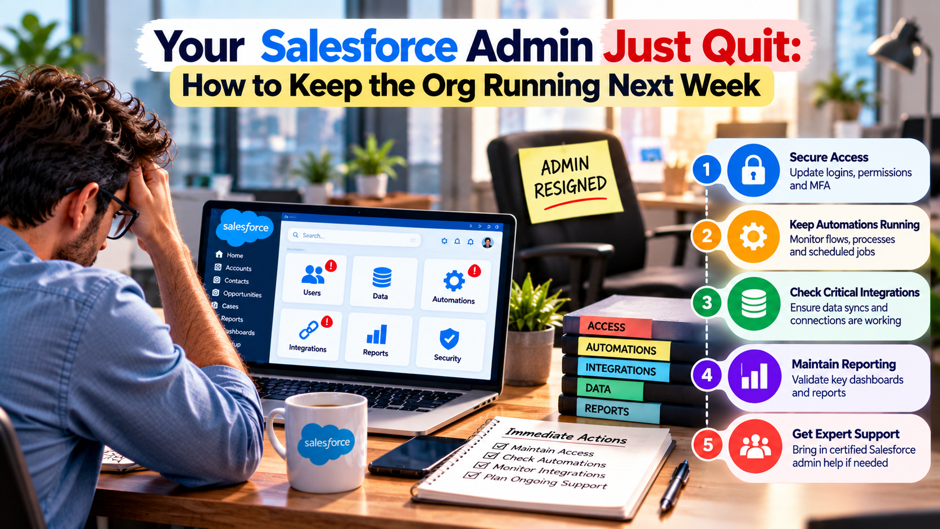
Consider an illustrative sales director at a 120-person company who opens her email on Monday and finds a resignation notice from the only Salesforce admin. The admin has a 2-week notice period, and nobody else knows how the org works. Leads route through assignment rules that only the admin understands, a nightly report goes to the CEO and 3 integrations run under the admin’s login. She asks what could break first, what to do this week and whom to call.
This article gives a practical plan for the first days after an admin leaves, with a longer view for the following month. It draws on Salesforce Ben checklists by Bart Lont and Stacy O’Leary, an article from the SaaS management vendor Torii and a backup guide from Gearset, which sells competing products. Most claims in those sources are practitioner experience rather than Salesforce documentation, so each is attributed. Confirm behavior in a sandbox and with Salesforce before you act.
TL;DR
- Freeze first and deactivate later. Salesforce Ben’s checklist advises creating a second admin user, then freezing the departing admin, because a frozen user can’t log in while automations keep running. That buys time to find everything tied to the account, which is where most breakage hides. Do that before the last day, not after.
- Hunt for hidden dependencies. The usual suspects are flows last edited by the admin, the Default Workflow User, default lead and case owners, scheduled reports and dashboards, and integrations that use the admin’s credentials. Fix them in a sandbox first, then in production, and write down each change you make.
- Capture knowledge before the last day. Run exit interviews, export your data and settings evidence, and name a cover plan. In the invented example here, 8 weeks of contractor cover at 20 hours a week costs $24,000, and the sources give no market rates. Treat every dollar figure there as invented.
The first hour and the first day
Start by keeping the admin on your side. A resignation is a business event, and the person leaving holds the best map of your org. Thank them, confirm the last day in writing and ask for their help with a handover, since goodwill matters more than any checklist. Don’t remove access in a panic, because a frozen or deactivated login can lock you out of the knowledge you need most during the notice period.
Next, confirm that a second administrator exists. Stacy O’Leary’s Salesforce Ben article on deactivating an admin lists “no backup admin” as the first pitfall and warns that losing your only admin isn’t easily fixed. If nobody else holds the System Administrator profile, create or promote a trusted user today, with approval from whoever owns the contract. Torii’s guide adds that Salesforce won’t let you deactivate the last active System Administrator, so the gap would surface anyway.
Finally, tell the people who rely on the admin. Sales operations, support leads and finance will all submit requests, and they need to know who handles them and what to expect. Post a short note that names a temporary point of contact, explains that nonurgent changes will wait and says how to flag something urgent. Salesforce Ben’s out-of-office checklist makes the same point about notifying stakeholders, and it suggests a shared mailbox so requests don’t vanish with a single person.
What to do each day this week
The table sets out a day-by-day plan for the first week. It’s my own sequencing, built from the Salesforce Ben checklists, rather than a sourced standard, so move items around to fit your calendar. The logic is to protect access first, then find dependencies, then back up, and only then change anything. Dates in your notice period may be shorter than a week, in which case compress the plan and drop the optional items.
| Day | Focus | Actions |
| 1 | Access and cover | Confirm a second admin, name a temporary contact, notify stakeholders |
| 2 | Inventory | Start a list of flows, rules, scheduled jobs, integrations and settings tied to the admin |
| 3 | Backup | Run a data export and save evidence of settings, per the backup section below |
| 4 | Knowledge capture | Hold handover sessions, record screen walkthroughs, collect credentials owners |
| 5 | Sandbox rehearsal | Test freezing and deactivation in a partial or developer sandbox, log errors |
| Last day | Cutover | Freeze the account, reassign jobs, confirm integrations still run |
Treat the sandbox step as mandatory. Stacy O’Leary warns that deactivation errors appear individually, so a rehearsal lets you log each error and fix them all in production in a single pass. Without it, you discover each blocker when a user complains. Without a sandbox, ask your Salesforce account team what your edition includes, since sandbox availability varies by license and may carry a cost. Schedule the rehearsal for day 5 at the latest.
Freeze now, deactivate later
Freezing buys time. Bart Lont’s checklist recommends creating a new admin user and then freezing the old account. A frozen user can’t log in, but the checklist says automations keep running, which gives you room to find problems before deactivation. That claim is the author’s and carries no citation, so confirm it in your sandbox. Torii describes freezing as halting the current session and blocking new logins, and adds that it helps when the user has open approvals or batch jobs.
Deactivation has blockers. Torii lists several things that can prevent it: scheduled jobs the user owns, the user being the default lead or case owner, and workflow email alerts where that user is the only recipient. The article also says you can’t deactivate yourself. When an error appears, it usually points to a dependency you haven’t moved yet. Treat each message as a finding, add it to your inventory and resolve it before retrying.
Deletion isn’t part of the plan. The sources discuss freezing and deactivating, and Torii says deactivation keeps the user’s records and history. Deactivated users stay in your org for audit purposes, whereas deleting them isn’t something these sources recommend. Check Salesforce documentation before you consider any removal, and ask legal or compliance staff whether record-keeping rules apply. For now, the goal is to stop the login without losing the trail.
Automations and flows tied to the admin
- Flows the admin last edited. Bart Lont says only the last editor of a flow receives error notifications. Once that person is frozen or gone, failures may go unseen. Long advises deactivating and reactivating affected automations under another user. Treat that as the author’s practice rather than a documented rule, and test in a sandbox. List every flow, note its last editor and reassign the notifications to a monitored mailbox.
- Default Workflow User. Both Salesforce Ben articles name this setting. If it points to the departing admin, workflow actions may fail after deactivation. Stacy O’Leary says to confirm the user is still active and to update it if not. Check Setup for the current value, choose a stable replacement such as a shared operational user and record the change so the next person finds it. Name that choice in your runbook so successors understand why it exists.
- Email alerts and flow email components. Stacy O’Leary advises removing the admin from any email alert that includes their username, and checking email components, exceptions and criteria inside flows. Torii adds that alerts where the user is the sole recipient can block deactivation. Search your alerts for the admin’s name and address, then replace them with a role-based mailbox that survives future departures. Test the new recipient by triggering a sample alert in the sandbox first.
- Validation rules with exceptions. Stacy O’Leary lists this as optional. Some orgs write validation rules that bypass checks for a specific username or ID, which is common when the admin also handles sales operations. Once the account is gone, the exception stops working and users may see sudden errors. Search your rules for the admin’s identifier and replace it with a permission-based bypass. Ask the business owner whether the exception is still needed at all.
Settings that still name the admin
The Salesforce Ben pitfalls article reads like an inventory of places where an admin’s name hides. The table below collects those places and what each controls. It’s drawn from Stacy O’Leary’s list, plus Bart Lont’s mention of Apex exception email recipients, and it’s worth checking even if you believe you don’t use a feature. Items you ignore tend to be the ones that fail quietly months later, when nobody remembers why.
| Setting | What it controls | Source |
| Default Workflow User | Who runs certain workflow actions | Both Salesforce Ben articles |
| Default Lead Owner | Who owns new leads when no assignment rule applies | O’Leary |
| Default Case Owner and Automated Case User | Case ownership and automated case actions | O’Leary |
| Automated Case User Notifications email | Where case notices go | O’Leary |
| Web-to-Lead and Web-to-Case creators | The “Created By” on web submissions | O’Leary |
| Lead and case assignment rules | Routing, including old inactive rules | O’Leary |
| Apex Exception Email recipients | Who hears about code errors | Lont |
Work through the table with 2 browser tabs open, a sandbox in the first and production in the second. Make each change in the sandbox first, then repeat it in production once nothing breaks. Keep a simple change log that records the setting, the old value, the new value, the date and who approved it. A reader comment on Lont’s article suggests adding the default case creator and default lead assignment owner, which O’Leary’s list already covers.
Scheduled jobs, reports and dashboards
Scheduled work is the most common place for silent failure. Bart Lont says to review scheduled dashboards, reports, Scheduled Apex and data exports, and to reassign the running user to an active account with the right permissions and record visibility. The last phrase matters, because a report that runs as a user with narrower access shows different numbers. Pick a running user whose visibility matches the original, and compare outputs before and after.
Stacy O’Leary singles out reports emailed to management. If the admin owned the schedule, the CEO’s Monday summary could stop arriving or show incomplete data, and that’s how a departure becomes visible to executives. Reassign the schedule or the folder, or remove it if nobody uses it. Torii also notes that scheduled jobs a user owns can block deactivation, so you may find these during the freeze-and-deactivate rehearsal. Check the recipient list too.
Don’t forget the data export schedule. Salesforce can run a recurring data export, and if the admin sets it up, the notification emails and the download steps may sit with a departing person. Gearset’s guide says you must download files within 48 hours of the completion email or lose access, so a missed email can mean a missed backup. Move the notification to a shared mailbox, and name the person who downloads each file.
Integrations and credentials
- Replace the admin’s login in every integration. Bart Lont recommends a dedicated integration user instead of a named admin, and advises changing passwords for every service the former admin could access. If middleware, a marketing tool or a data warehouse connects with the admin’s credentials, that connection will break at deactivation. List each connected system, find out which account it uses and move it before the last day. Do this before the freeze.
- Check connected apps and tokens. A reader comment on Stacy O’Leary’s article raises connected apps and OAuth as extra risks, and it’s a reader’s addition rather than the author’s claim. The concern is sound: a token tied to a deactivated user stops working. Ask each vendor how its connection authenticates, and ask your security team to review which tokens the admin authorized. Keep a written list of approved connected apps for the next admin.
- Document vendor contacts. Salesforce Ben’s out-of-office checklist advises keeping integration documentation and vendor support contacts easy to find, and assigning someone to watch integration error emails and logs. In a small company the admin often holds these relationships alone. Ask for a list of vendors, account numbers, renewal dates and support portals, then store it where the next admin can reach it. Verify each contact still works by sending a short test message.
- Test after the change. After you move each integration, run a real transaction through it, such as creating a lead and watching it appear downstream. Don’t assume a green status light means data is flowing. Check the logs a day later and again a week later, since some jobs run only at night or at month end. Record the test and its result beside the change log entry. Share the results with stakeholders.
Security: access, passwords and audit trail
Remove what the admin no longer needs. Once the freeze starts, review the permission sets, public groups and any credentials the admin held outside Salesforce, such as shared service accounts. Bart Lont advises changing passwords for every service the former admin accessed, and calls it common sense. Treat the departure as a security event regardless of how friendly it was, and coordinate with your IT or security team so that the checks cover email, cloud storage and integrations.
Review what the admin changed recently. Torii says the Setup Audit Trail records configuration changes and that the in-app view shows the most recent 20,000 changes, with a CSV download covering 180 days. That period, which the article attributes to a Salesforce document, is roughly 6 months of change history. Download it before the last day and read it for recent changes the admin made, especially to profiles, sharing and automation.
Check login history. Torii reports that Login History shows the last 20,000 logins in the app and offers a CSV download covering the last 6 months, with fields for username, time, IP address, status and client type. Look for unusual activity near the resignation date, such as logins from new locations or large exports. Most departures are uneventful, though a quick review is cheap and gives your security team a baseline.
Know the limits of your visibility. Torii says Event Monitoring dashboards require extra licenses and that detailed event files are kept for 30 days, or 24 hours on some editions, a claim it doesn’t cite. Don’t count on logs you haven’t confirmed. Ask Salesforce what your org retains, and if the answer is thin, export what you can now. After the departure, the history you didn’t capture may be unrecoverable.
What the logs can and can’t tell you
The table compares the 3 monitoring sources that Torii describes. Torii is a SaaS management vendor that promotes its own product in the same article, and the retention figures are mostly its statements, with the 180-day figure attributed to a Salesforce document. Treat every number as something to verify in your org’s Setup pages. The aim isn’t forensic detail but a record of who changed what before the handover. Check each against your org.
| Source | What it shows | Retention per Torii | Caveat |
| Setup Audit Trail | Configuration changes | 20,000 changes in the app; CSV covers 180 days | Attributed to a Salesforce document |
| Login History | Logins with user, time, IP, status and client type | 20,000 logins in the app; CSV covers 6 months | Verify in your org |
| Event Monitoring | Detailed event files, such as logins and API calls | 30 days, or 24 hours on some editions | Unsourced; needs extra licenses |
Use the audit trail for a specific purpose: finding changes the admin made without telling anyone. A new field, a modified flow or a changed sharing rule can explain a mystery for months afterwards. Download the trail, sort it by user and scan the last few weeks. If something looks unusual, ask the admin about it in the handover session, while they’re still reachable and willing to explain. Take notes during that conversation.
Back up before anything changes
- Export the data. Gearset’s guide says the data export service runs weekly for Enterprise, Performance and Unlimited editions and monthly for Professional and lower, with large exports split into ZIP files of up to 512 MB. Run an export now, before any change, and store it somewhere your team controls. Confirm the schedule options for your own edition with Salesforce, since the guide is a vendor’s description. Label each file with the date and the person who ran it.
- Understand what the export leaves out. Gearset says only org data is exported, with no metadata, so validation rules, automation and custom objects aren’t included. It also says there’s no built-in restore, record filtering isn’t possible and parent-child relationships aren’t preserved. That makes the export a safety net for data rather than a way to rebuild configuration. Gearset sells competing backup products, so weigh its framing. Plan for that gap from the start.
- Capture configuration separately. Because the export omits metadata, record your configuration another way. Take screenshots of key settings, export flow descriptions and list your custom objects and fields. If you work with a consultant, ask whether a metadata backup tool or a version-control process fits your budget. For a small org, a well-organized document with screenshots may be enough for now. Update the document whenever you change a setting so it stays accurate.
- Test that the backup opens. A file you can’t read has no backup. Open the export, check that key objects are present and note the date. Store a copy outside Salesforce, restrict access to it and record who holds the keys. Because the export contains customer data, treat it under your privacy rules, and ask counsel what applies to storage and retention. Repeat the check after each new export to catch silent failures early.
Interim cover options
There are 4 broad options for covering the role while you hire. First, promote a power user, which is cheap and fast but risky when the person lacks training and holds a day job. Second, hire a contractor or freelance admin, which costs more per hour but brings experience. Third, engage a managed services firm on a retainer. Fourth, ask the departing admin to consult after leaving. Each fits a different budget and risk tolerance.
Match the choice to the work. If the backlog is mostly user questions and small changes, a trained power user with a written runbook may be enough. If it involves flows, integrations or data cleanup, a contractor with a clear scope suits better. Define deliverables before they start: the inventory, the sandbox rehearsal, the fixes and the documentation. Write the criteria down first so that the choice survives disagreement among managers later in the process.
Whatever you choose, keep a single decision-maker for changes. Cover arrangements fail when several people request edits and nobody sets priorities. Name a business owner who approves requests, and give the person covering the role a short list of rules: test in a sandbox, log every change, don’t edit flows without a backup and don’t grant new admin access without approval. Post the rules in the channel where requests arrive, and pin them.
Knowledge capture before the last day
Run structured handover sessions. Ask the admin to walk through each area on a screen share: users and permissions, automation, reports, integrations, release management and vendor relationships. Record the sessions, with consent, and ask the admin to narrate why things were built the way they were. The reasons are the part most documentation lacks. Schedule the sessions early in the notice period, when the admin is still focused and cooperative.
Ask the questions that surface hidden work. Which tasks do you do every week, month and quarter, and which have no ticket? Which users call you directly? What would break if you disappeared tomorrow? Salesforce Ben’s out-of-office checklist advises delegating recurring duties that are specific to your organization, such as weekly reviews. Capture each task with its trigger, steps, owner and the systems it touches, so a successor can follow it without guessing.
Write a short runbook. Stacy O’Leary’s out-of-office checklist suggests an org-specific help guide, including how to create a Salesforce support case and a list of internal contacts. Add the instance the org runs on and a link to Salesforce’s status page, so the team can tell a platform outage from a local problem. Keep the runbook short enough that people will read it, and store it where they can find it.
Close the loop on access. At the end of the notice period, hold a final session to confirm the inventory is complete and every credential, integration and scheduled job has a new owner. Ask the admin to sign off in writing that they’ve shared everything they know, and thank them again. Leave the door open for questions in the first 30 days, since a departing admin who feels respected will usually answer a quick message.
Your first 30 days
- Week 1: stabilize. Finish the inventory, complete the sandbox rehearsal and apply fixes in production. Freeze the account on the last day and watch for errors. Keep a daily list of user complaints and map each to a cause. Confirm that scheduled reports arrive, integrations pass data and assignment rules route new leads. Report the status to leadership in a few lines, so expectations stay realistic. Keep the freeze in place until errors stop.
- Week 2: deactivate and clean up. If nothing broke during the freeze, deactivate the account, following Bart Lont’s order. Reassign record ownership, which his checklist lists as step 6, so that records aren’t owned by an inactive user. Stacy O’Leary suggests a placeholder owner and a dashboard of record counts by type to show what moved. Update the primary contact in company information if needed. Document each reassignment in your change log as well.
- Week 3: document and review. Turn the handover recordings and change log into a written runbook. Review the org for risks the departure exposed, such as undocumented flows, shared logins and unmonitored mailboxes. Decide which of those to fix now and which to schedule. Share the runbook with the cover person and the hiring manager, and ask them to test it by following it for a real task. Assign each fix to an owner.
- Week 4: decide the permanent plan. Compare the cover arrangement’s cost and results against hiring. Decide whether the role should be full time, part time or a managed service, based on the workload you measured. Write the job description from real tasks rather than from a template. Set a review date for the interim arrangement so it doesn’t drift into permanent without a decision. Present the options to leadership with the measured workload attached.
An illustrative cost of covering the gap
An invented company expects 8 weeks to hire a replacement and assumes 15 admin requests arrive each week, each taking an average of 2.5 hours. With no cover, 120 requests pile up over the 8 weeks. A contractor at 20 hours a week clears 8 requests a week and leaves 56 waiting. A contractor at 30 hours clears 12 a week and leaves 24. Every number in the table is invented, including the $150 hourly rate.
| Scenario (invented) | Calculation | Result |
| Requests arriving over the gap | 15 × 8 weeks | 120 requests |
| Contractor at 20 hours a week: capacity | 20 ÷ 2.5 | 8 requests a week |
| Contractor at 20 hours: backlog after 8 weeks | (15 minus 8) × 8 | 56 requests |
| Contractor at 20 hours: cost | 20 × $150 × 8 | $24,000 |
| Contractor at 30 hours: capacity | 30 ÷ 2.5 | 12 requests a week |
| Contractor at 30 hours: backlog after 8 weeks | (15 minus 12) × 8 | 24 requests |
| Contractor at 30 hours: cost | 30 × $150 × 8 | $36,000 |
The extra $12,000 for the larger arrangement removes 32 requests from the backlog, or $375 per request, and that figure is just as invented as the inputs. Real requests vary widely, and some matter more than others. The value of the exercise is the method: estimate arrival rates, estimate effort per request, and compare the backlog you can tolerate with the fee. Ask any provider for a written scope and a rate card.
Mistakes teams make when the admin leaves
Deactivating on the last day with no rehearsal. The Salesforce Ben pitfalls article stresses testing in a sandbox because errors appear individually. A team that deactivates on the final afternoon discovers each blocker with the admin already gone. Rehearse early, fix the findings in production and keep the freeze as a safety step. The rehearsal costs a few hours, whereas an unplanned outage can cost a sales week. Start the rehearsal this week.
Treating the departure as only a staffing issue. A resignation also changes access, security and knowledge. Teams that focus on the job posting forget the passwords, tokens and audit trail. Involve security and compliance staff on day 1, and treat the credentials the admin held as items to rotate. Coordinate with human resources so that the exit checklist covers Salesforce and every connected service. Each of those areas needs a named owner from the first day.
Letting the interim arrangement become permanent. A power user who covers the role “for a few weeks” can end up doing it for a year, with no training and no time. Set a review date, track hours spent and compare the real workload with the plan. If cover keeps going, formalize it with training and a role change, or hire. Drift creates the same single point of failure you just lived through.
Failing to learn from the exit. After the dust settles, ask what made the org depend on a single person. Common answers include missing documentation, shared logins and flows nobody else could read. Fix those gaps with a named backup admin, a shared mailbox for notifications, a change log and a documented integration user. The goal isn’t to prevent departures but to make the next departure a routine event. Schedule that review within 30 days.
FAQs
Should I freeze or deactivate the admin first?
Salesforce Ben’s checklist advises creating a new admin user and freezing the old account first, because a frozen user can’t log in while the checklist says automations keep running. That gives you time to find hidden dependencies before deactivation. Torii explains that scheduled jobs, default owners and some email alerts can block deactivation. Test the sequence in a sandbox and confirm the behavior with Salesforce before you do it in production.
What breaks first when an admin leaves?
The sources point to automation failures that go unnoticed, scheduled reports that stop, integrations that use the admin’s credentials and settings that name the admin, such as the Default Workflow User and default lead owner. The earliest visible symptoms are usually missing reports and routing errors. Run through the inventory tables in this article before the last day, and assign someone to watch error emails afterward. Keep that list handy during the freeze period.
Do I need a sandbox to test the deactivation?
Stacy O’Leary recommends testing in a partial or developer sandbox, because errors appear individually and a rehearsal lets you fix them all in production in a single pass. Sandbox availability depends on your edition and may carry a cost, so confirm with your Salesforce account team. Without a sandbox, deactivate during a quiet period, keep the freeze in place first and monitor closely. Document the results either way. Plan the test early in the notice period.
How do I back up my data before the admin leaves?
Run the data export service from Setup. Gearset’s guide says it runs weekly on Enterprise, Performance and Unlimited editions and monthly on Professional and lower, with downloads available for 48 hours after the completion email. It exports data without metadata, and it has no built-in restore. Capture configuration separately with screenshots and documentation, and confirm the details for your edition with Salesforce. Store the files outside Salesforce and restrict who can open them.
How far back can I see what the admin changed?
Torii reports that the Setup Audit Trail shows the most recent 20,000 changes in the app and that a CSV download covers 180 days, attributing the period to a Salesforce document. Login History shows the last 20,000 logins, with a CSV covering 6 months. Verify these figures in your org, and download the files before the last day so you keep the evidence. Note the date of each download, since the history keeps moving forward.
Who should cover the role while we hire?
The choice depends on workload and risk. A trained power user suits small, routine requests, a contractor suits flows and integrations, and a managed services firm suits ongoing support. The sources don’t provide rates, so the cost figures in this article are invented. Define deliverables, name a single business owner for approvals and ask for a written scope before anyone gets admin access. Review the arrangement every 2 weeks until a permanent hire starts.
Should the departing admin keep any access?
Generally no, once the handover ends. Bart Lont advises changing passwords for every service the former admin accessed, and calls it common sense. If you want the admin available for questions, arrange it as a paid consulting engagement with a defined scope and least-privilege access, approved by security and legal staff. Review any such arrangement against your contract and privacy rules. Set an end date for any such arrangement and revoke access on that date.
How do I stop this from happening again?
Name a backup admin, store documentation in a shared place, use an integration user and shared mailboxes for notifications, and keep a change log. Salesforce Ben’s out-of-office checklist describes similar practices for covering a planned absence, including a help guide and a trained backup. Review the setup each quarter, and treat any named-person dependency as a risk to fix. A short quarterly review keeps the documentation current and shows where new single points of failure have appeared.
